The accountant account guide

Everything an accountant does from their panel and what their customers see in the bot: deposit and withdrawal requests, payment methods and automatic checks, packages, offers and rewards, bulk messages, monthly reports and security — with a picture of every page.

Monthly subscription
40 USDT
Per accountant, paid in USDT from «My subscription».
Request the service now
Message us to get your bot within minutes.
Running now
Bots: 1 · Channels: 1
Bots and channels of subscribed accountants, linked below.

1. Getting started

What is Ichancy?

Ichancy is a control panel that runs your Telegram bots to top up and withdraw your players' balances on the Agent platform (your cashier). A customer asks the bot for a deposit or a withdrawal and pays you with the payment methods you choose; you approve with one tap in the panel or in Telegram, the player's account is credited through the API automatically, and everything lands in your statement.

  • One or more Telegram bots with your name and picture, working around the clock in Arabic and English.
  • Player accounts created, linked, topped up and withdrawn from automatically on the platform, without opening the cashier.
  • Payment methods of your choice: Syriatel Cash, ShamCash, USDT, PayPal, bank transfer and more, some of them checked automatically.
  • Ready-made tools to grow deposits: packages, gift codes, a welcome offer, referrals, loss compensation, a loyalty program with a wheel of fortune, the «Crazy cashier», and bulk messages to all your subscribers.
  • An exact statement and a monthly report with charts, instant notifications on your phone and in Telegram, a management bot that opens your panel inside Telegram, and an audit log of everything in your account.
The monthly subscription price at the top of this page is read live from the system and paid in USDT. Message us to get your bot within minutes.
What's new

What was added to the panel and the bot lately, in short. Each feature has its own section in this guide, with its picture.

  • 📱 Syriatel Cash linked directly: link your own number from «ShamCash and Syriatel Cash» (the number, its Syriatel Cash password and an SMS code the first time) without API SYRIA. Your customers' deposits are checked in its history, you store your PIN to pay withdrawals with one button, or automatically once the administration allows you (with a required limit per payout and an optional daily one), and you choose how often its history is read and see it live on the number's page.
  • ⚙️ Operation settings: from «Operation settings» at the top of «Transactions» you choose «Credit what actually arrived» (the customer typed 12999 and 100 arrived: 100 is credited) and «Cancel at once when the number is not found» (a ShamCash or Syriatel Cash deposit with a number the wallet does not have is cancelled within seconds, and the customer is asked for a new deposit with the right number). Both are on until you turn them off.
  • 📦 Packages: a fixed-amount deposit that comes with extra balance, loyalty points and free wheel spins, bought from «📦 Packages» in the bot or from the portal.
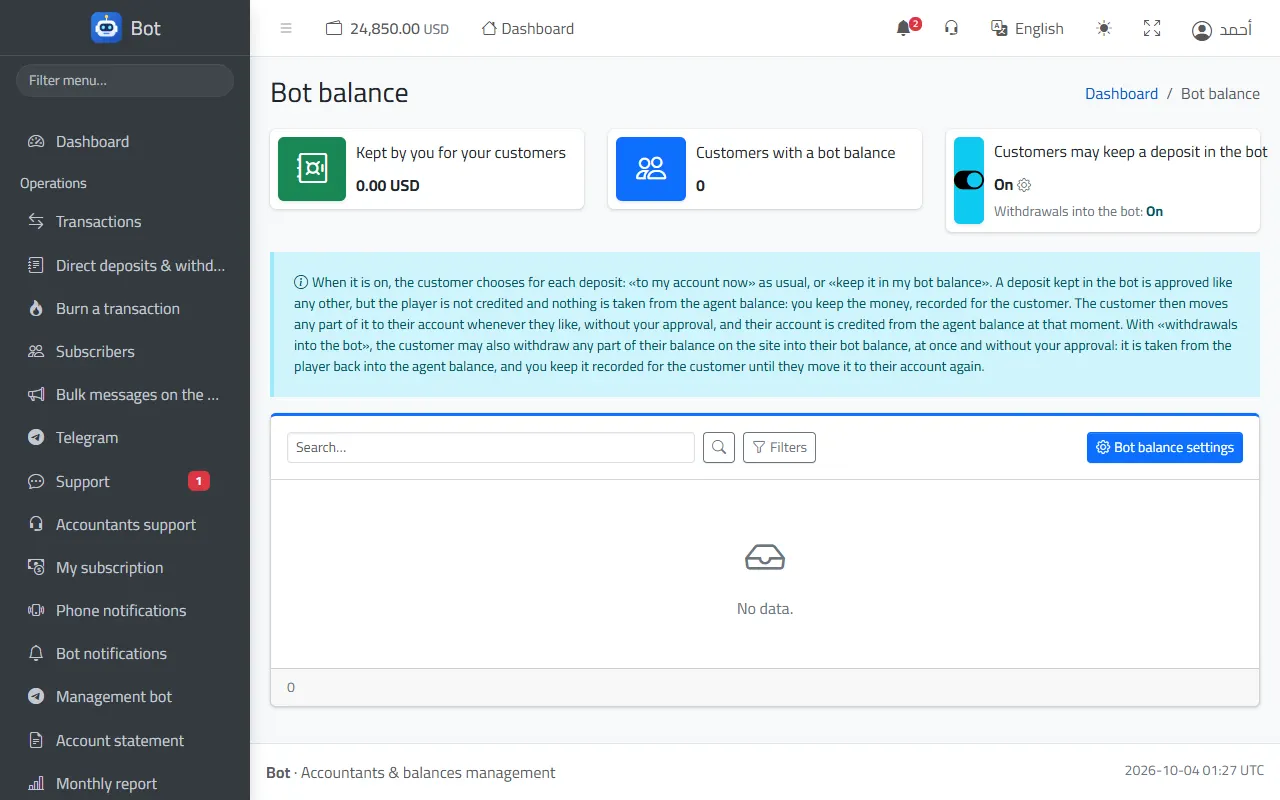
  • 🏦 Bot balance: customers keep a deposit in the bot and move it to their account in parts whenever they like, without your approval; they can also withdraw from their account into the bot at once, and ask for a «💸 Final withdrawal» to get the money.
  • 📣 Bulk messages on the bot: one message (an offer, news, a notice) to all your subscribers, or only the linked or unlinked ones, with a picture, a «💳 Deposit» button and a link button, previewed before it goes out.
  • 🔥 Burn a transaction: a ShamCash or Syriatel Cash transaction number you credited by hand outside the bot is refused for any deposit once burnt, and every attempt to use it alerts you.
  • ⛔ Block a transfer number: on a deposit that failed or was cancelled, block its transfer number so it can never be credited again; the transactions list shows a «Transfer number» column.
  • 👤 My profile: customers save their ShamCash address and Syriatel Cash code once and every withdrawal uses them; you see them in full on the subscriber''s page.
  • 📊 Monthly report: all of a month''s money on one page with charts: daily deposits and withdrawals, payment methods, bonuses and fees, and your real profit after the customers'' balances.
  • 🤖 Management bot: your own Telegram bot, given by the administration, that opens your whole panel inside Telegram with your verification code.
  • ⚖️ Separate withdrawal limits: every payment method has a minimum and maximum for deposits and another pair for withdrawals.
  • ✅ Interactive automatic check: when a customer transfers an amount other than the one typed, the amount that arrived is credited; when the transfer is not found, the customer checks again or corrects the number by themselves.
  • 🚫 Uncovered withdrawals cancelled: when a customer plays the amount away before you pay and the balance no longer covers the request, it is cancelled automatically and you are told «do not send the money».
  • 🔔 The bell and the «Notifications» page: everything that reached you in one place; a tap opens the request.
  • 🔐 Sign in with Google, Facebook or a passkey, an Android app for the panel, and a temporary lock after repeated wrong verification codes.
  • 👥 Support team and support bot: support staff with their own sign-in answer your customers from the panel or from a Telegram bot; the administration turns them on when you ask.
Updates reach your account automatically, with nothing for you to do; what needs switching on (such as packages and the bot balance) has its button on its page.

How your account is set up

The administration does all the technical set-up; you only send your details, then receive the panel link, your sign-in and your bot's link.

  • You send: your name and the cashier''s currency, the cashier''s details (username, password and User Id), the bot name your customers see, a support contact, and your payment methods with their rates, limits and exchange rate if any.
  • The administration creates: your accountant account (email and password), the link to your cashier (Agent account), the bot and its activation, the payment methods, and a promotion channel if you want one.
  • On your first sign-in: change the password, enable two-step verification, then open your bot and press Start so requests reach you in Telegram.
Do not use the cashier's details in another program or bot, and do not change its password without telling the administration first: deposits and withdrawals stop until it is updated.

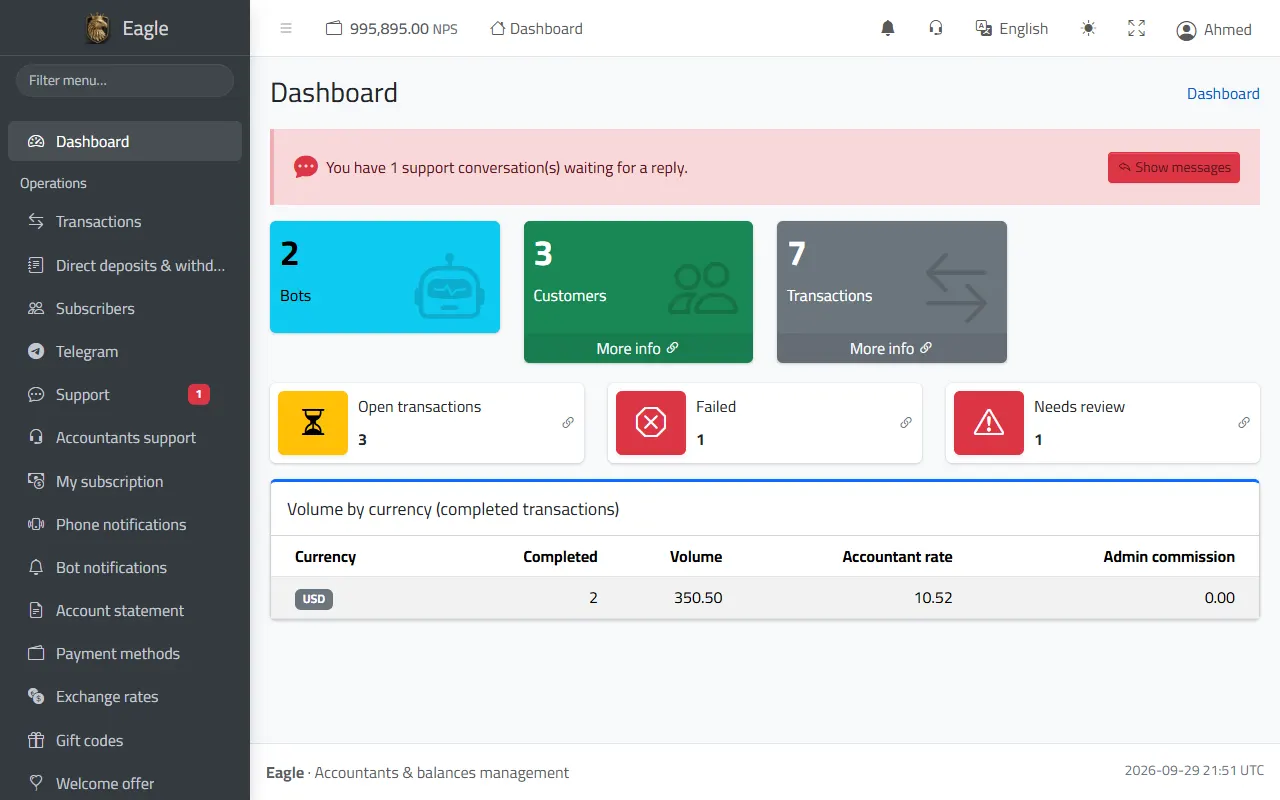
Dashboard

The first thing you see after signing in: a live summary of your bots, with the sidebar menu of every section and a search in it.

  • How many bots, bot subscribers, channel subscribers and operations you have, each with a quick link.
  • Open operations (awaiting your approval or in progress), failed ones, and those that need a review.
  • Volume by currency of the completed operations, and a «Monthly report» button.
  • «Subscribers of each bot and its channel»: how many people use each bot and its linked promotion channel.
  • A notice at the top when support conversations are waiting for your reply.
  • In the top bar: the live balance of your Agent account, the notification bell, messages to the administration, language, dark mode and full screen.
Dashboard: bots, subscribers and operations, open and failed operations, volume by currency, and the subscribers of each bot and its channel.

2. Daily operations

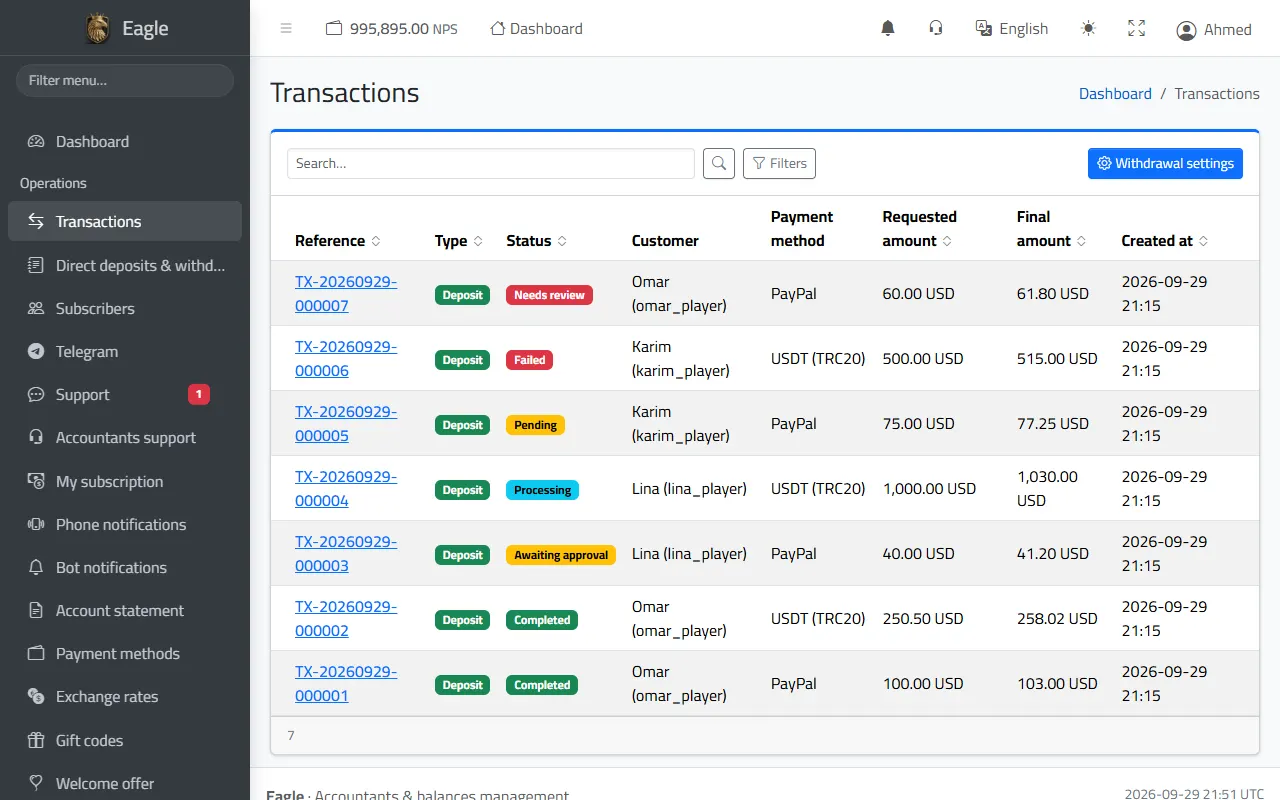
Operations: deposit and withdrawal requests

Every deposit or withdrawal request from the bot or the subscriber portal shows here with its status, filtered by status, type, date, bot and payment method.

  • Statuses: pending (no proof sent yet), awaiting approval, processing, completed, failed, needs review, cancelled.
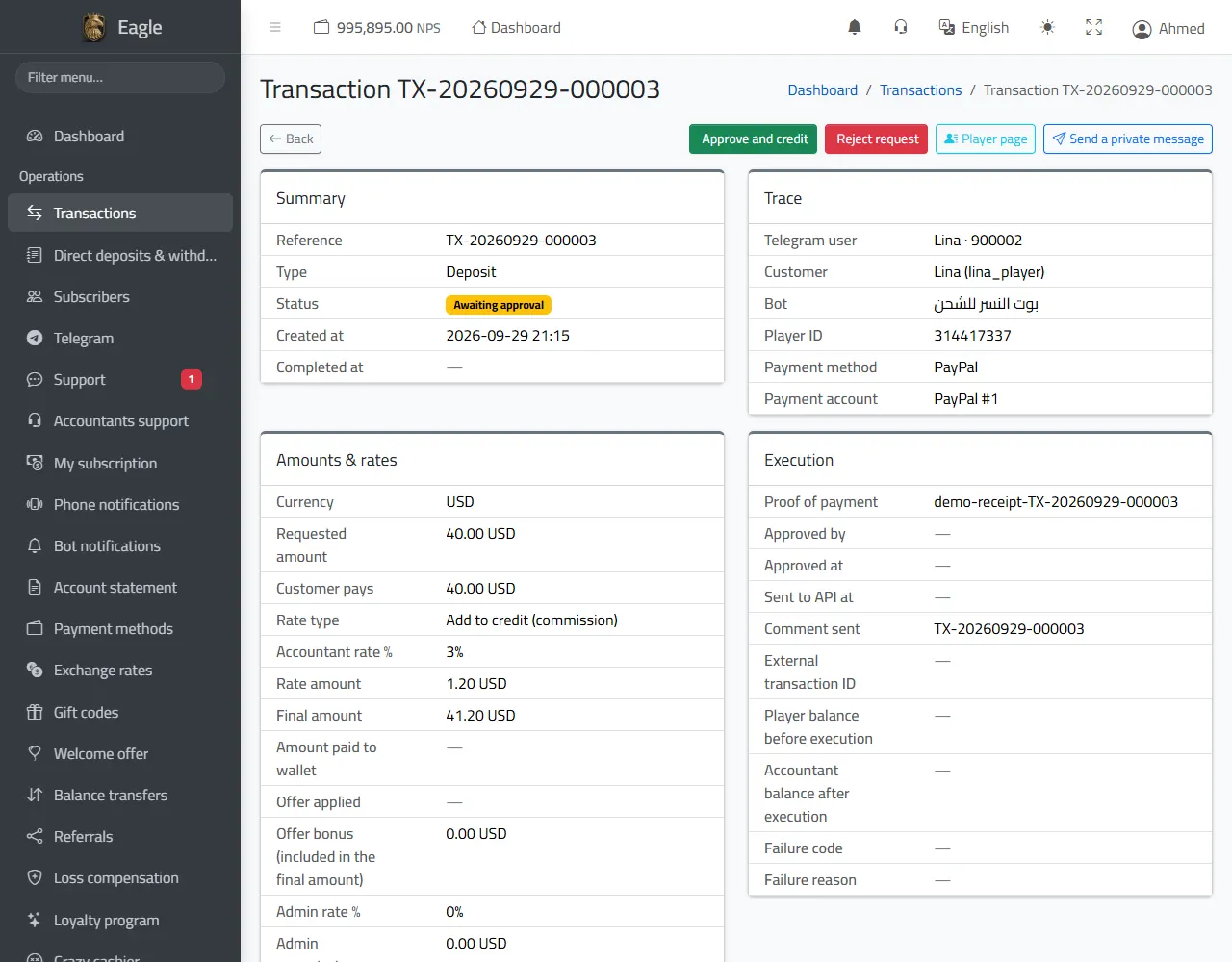
  • The operation''s page shows the payment proof, the amount asked and what the customer paid, the rate and the offer or package applied, and the final amount to credit.
  • «Approve and credit» sends the amount to the player''s account through the API at once; «Reject» cancels it and tells the customer.
  • Approval works from the panel and from the bot''s message in Telegram; the first approval wins, so a request is never credited twice.
  • The «Transfer number» column shows the ShamCash or Syriatel Cash transaction number of each deposit, and whether it is used by another request or blocked.
  • «Block the transfer number»: a deposit that did not complete (failed or cancelled) and you credited the player by hand instead? Block its number from the operation''s page so no request can use it afterwards.
  • «Operation settings» at the top of the list: what the automatic ShamCash and Syriatel Cash check does on its own — credit what actually arrived, and cancel a deposit within seconds when its transaction number is not found.
  • From the operation''s page you reach the «Player page» and «Send a private message» to the customer.
Any unconfirmed result from the platform (a cut connection or an unclear reply) goes to «Needs review» and is never retried automatically, which protects you from double credits.
The operations list with status, amounts and filters.
A deposit request awaiting approval: «Approve and credit» or «Reject», with the amounts and rates.
Withdrawal requests and holding the amount

The customer asks the bot for a withdrawal, picks how to receive it and enters their account details (or uses the address saved in «👤 My profile»); you send the money and confirm, and the amount is taken from their player's balance.

  • «Withdrawal requests» in the menu, right under «Transactions»: the withdrawal requests alone, opening on «Not completed» (pending, awaiting approval, processing, needs review); the number beside it is how many. Pick «All» in the filter to see the completed and cancelled ones too.
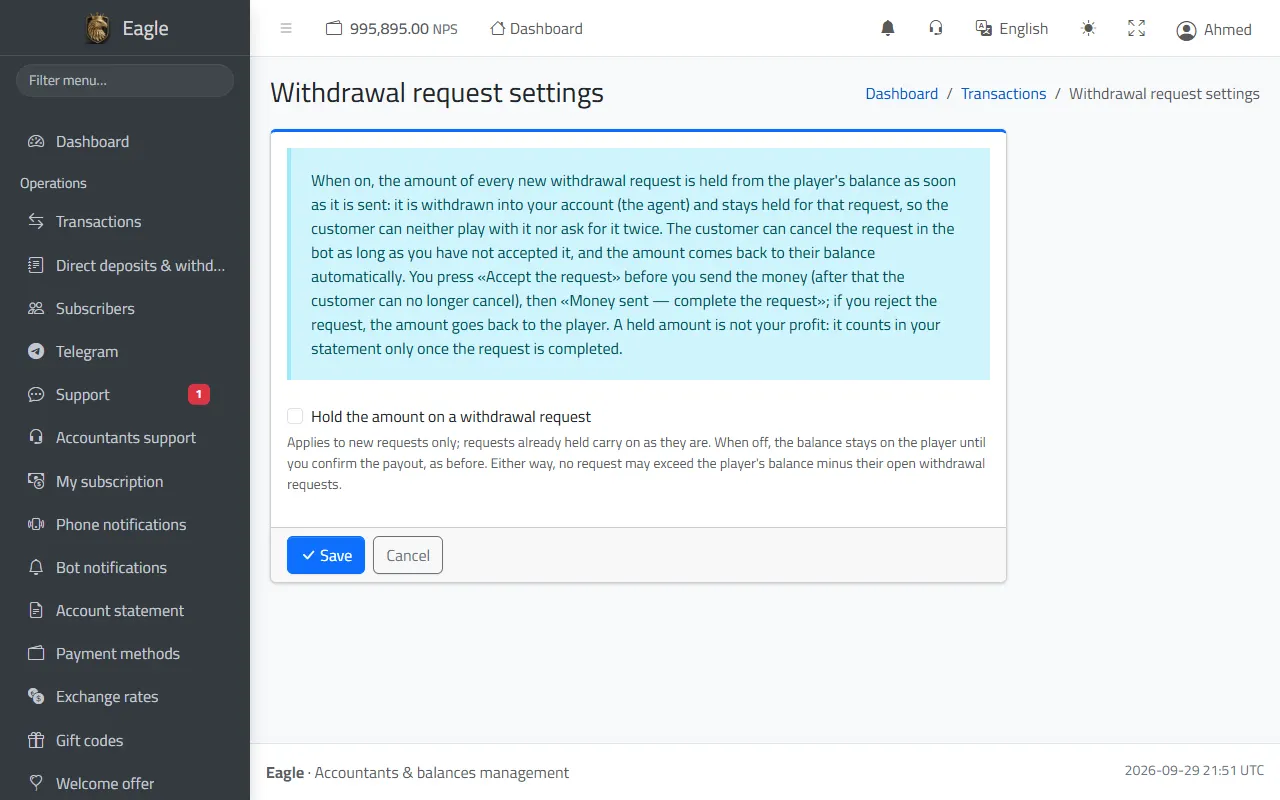
  • «Hold the amount when a withdrawal is requested» (optional, in «Withdrawal settings» on that list): the amount leaves the player''s balance at once and stays held for that request, so the customer cannot play it or ask for it twice.
  • With the hold you press «Accept the request» first (after that the customer can no longer cancel), then «Money sent — complete the request»; rejecting returns the amount to the player automatically. Until the request is accepted, the cancel button comes first in the customer''s menu.
  • Without the hold the balance stays with the player until you confirm the payment, and no request may exceed the balance minus their open requests.
  • When a customer plays the amount away before you pay and the balance no longer covers the request, it is cancelled automatically (checked every two minutes, and when you open it or pay it through API SYRIA) and you get a «do not send the money» alert.
  • Every payment method has a minimum and maximum for withdrawals, separate from the deposit ones, and the bot tells the customer the right limit when they are outside it.
  • With ShamCash and Syriatel Cash through API SYRIA you can pay a withdrawal from the panel in one click, while the administration allows automatic payouts.
Withdrawal settings: holding the amount when a withdrawal is requested.

Burn a transaction

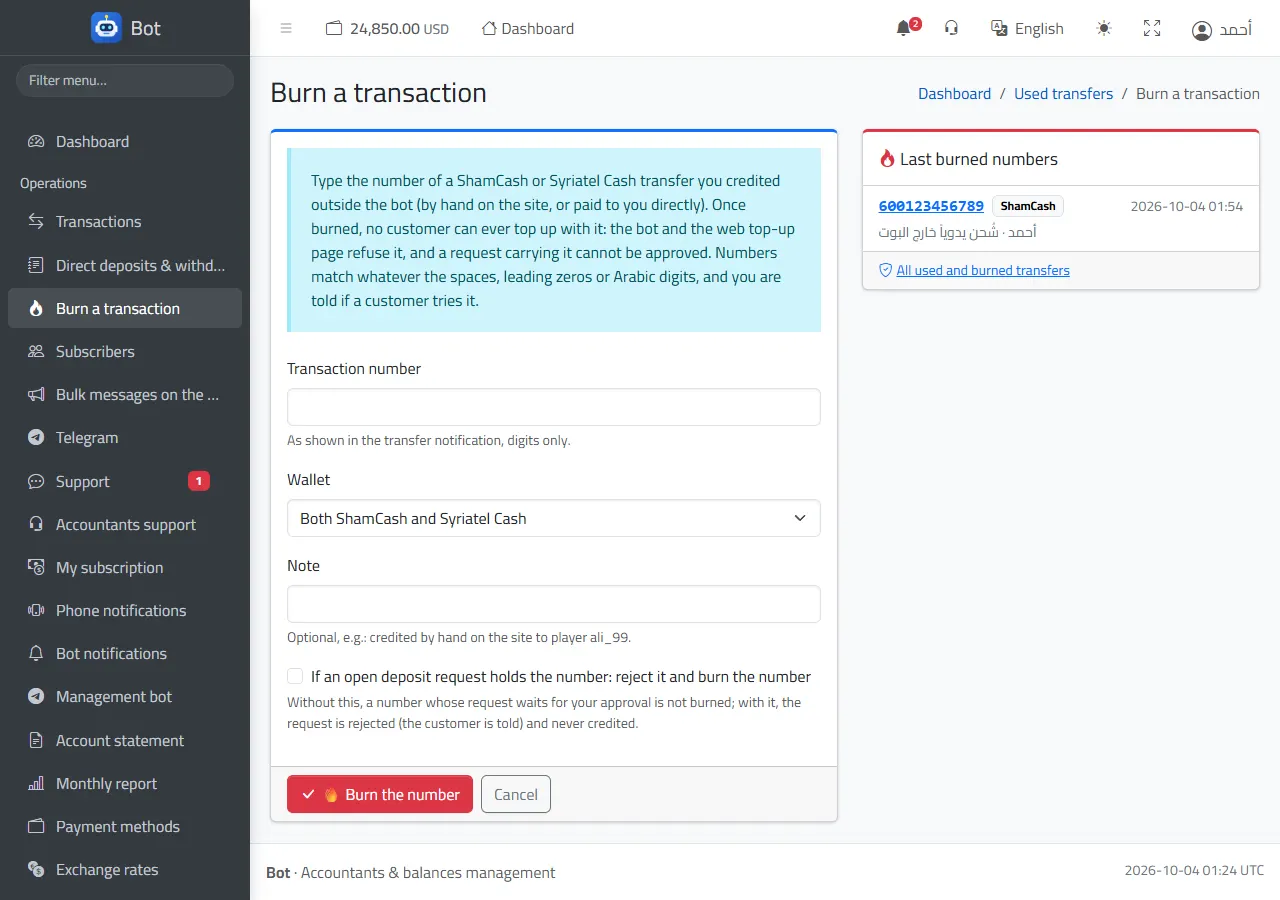
Credited a customer outside the bot (by hand on the site, or they paid you directly) for a ShamCash or Syriatel Cash transfer? Enter the transaction number here and burn it: no customer can ever deposit with it.

  • The bot, the portal''s top-up page and manual approval all refuse a burnt number, even when the same customer sends it later.
  • Any attempt to deposit with a burnt number alerts you, so you know who tried.
  • When the number is in an open deposit request, you can reject that request and burn the number together.
  • A log of every burnt number with its wallet, note and date.
«Burn a transaction»: a number credited outside the bot is never accepted again, with the log of burnt numbers.

Direct deposits & withdrawals

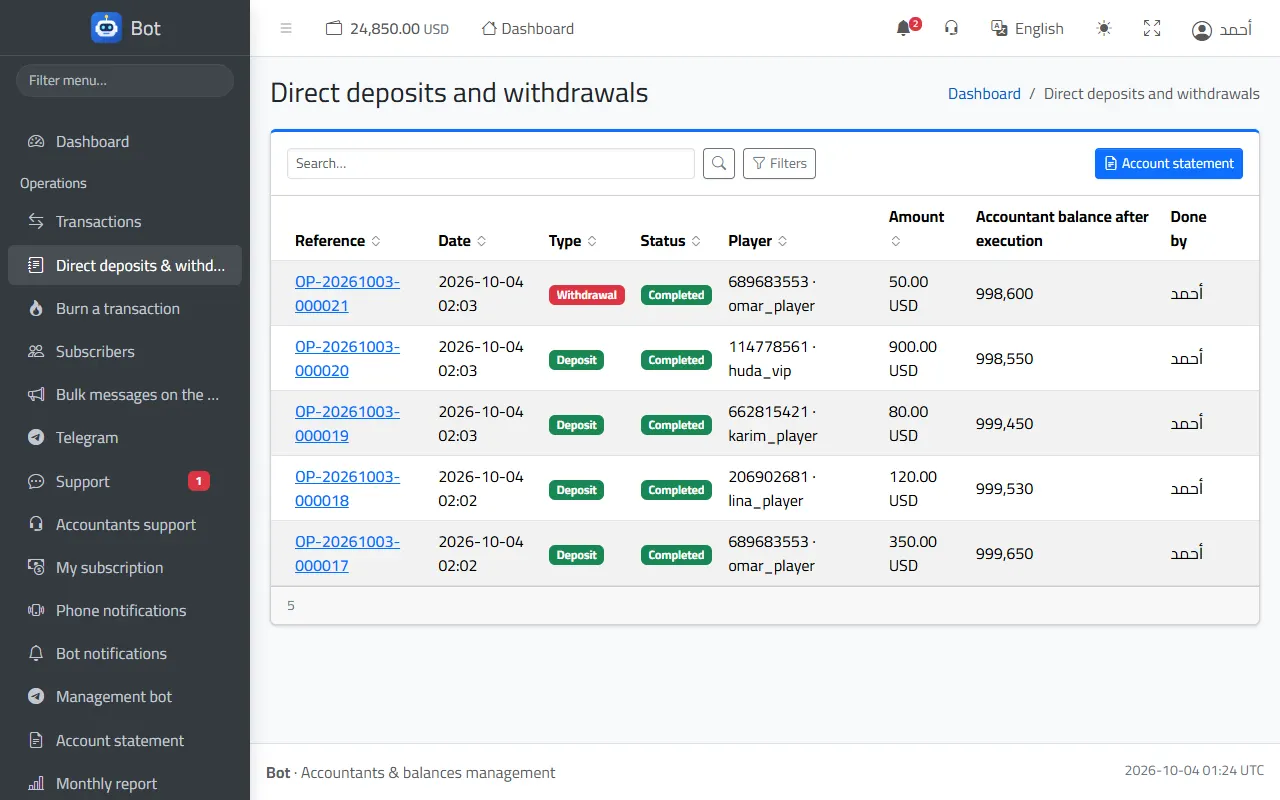
Every movement on a player's balance that did not come from a bot request: direct deposits and withdrawals from the player's page, gift codes, referral earnings, loss compensation, loyalty rewards, the welcome offer, packages, the bot balance and balance transfers.

  • Each has a reference, a status (completed, failed, unknown result) and the Agent account balance after it.
  • A direct deposit or withdrawal from the panel asks for your password (or your fingerprint) every time, and can carry a ShamCash or Syriatel Cash transfer number so that number is refused for any deposit afterwards.
  • An operation with an unknown result is settled by the accountant after looking it up on the cashiers' site, or automatically from the Agent account balance, and never retried automatically.
  • All of them appear in the statement and the monthly report.
Direct deposits & withdrawals: each with its reference, status and the Agent balance after it.

Subscribers

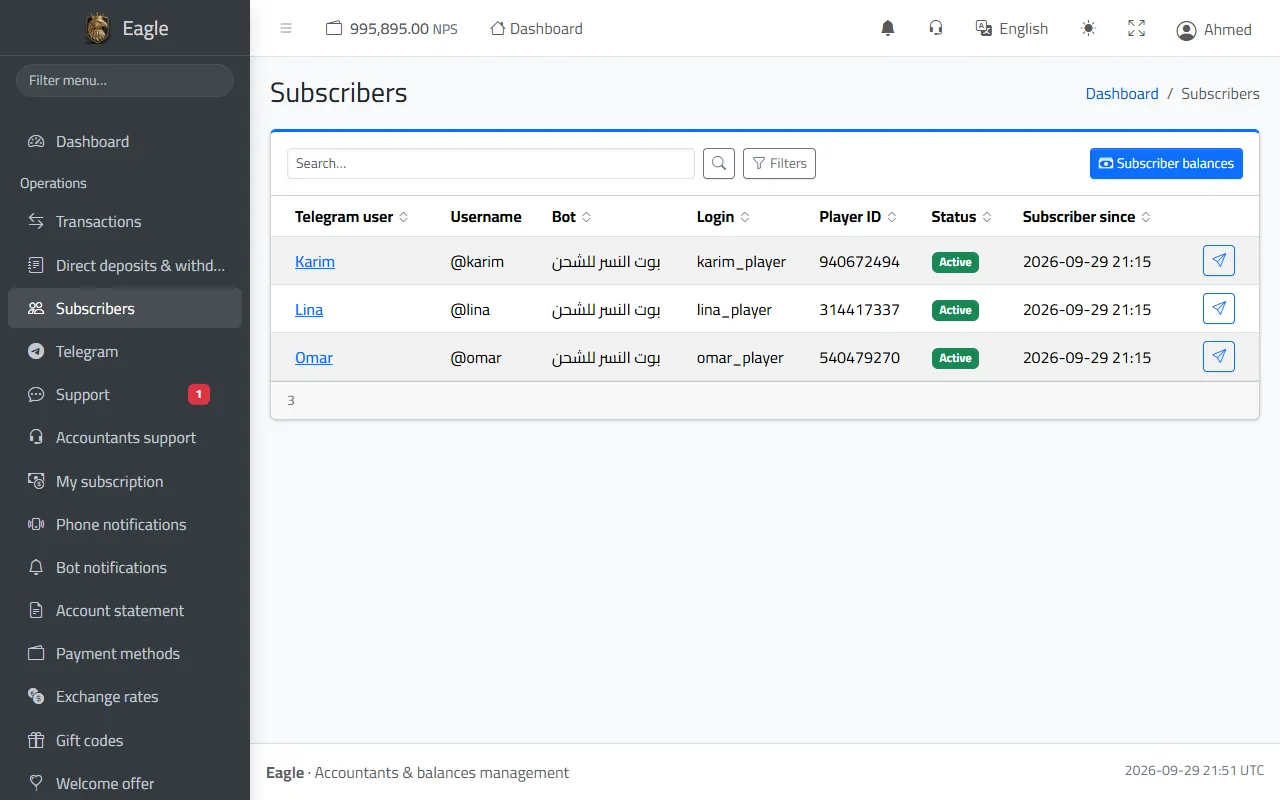
Everyone who started one of your bots: Telegram account, bot, login and player ID, status and subscription date.

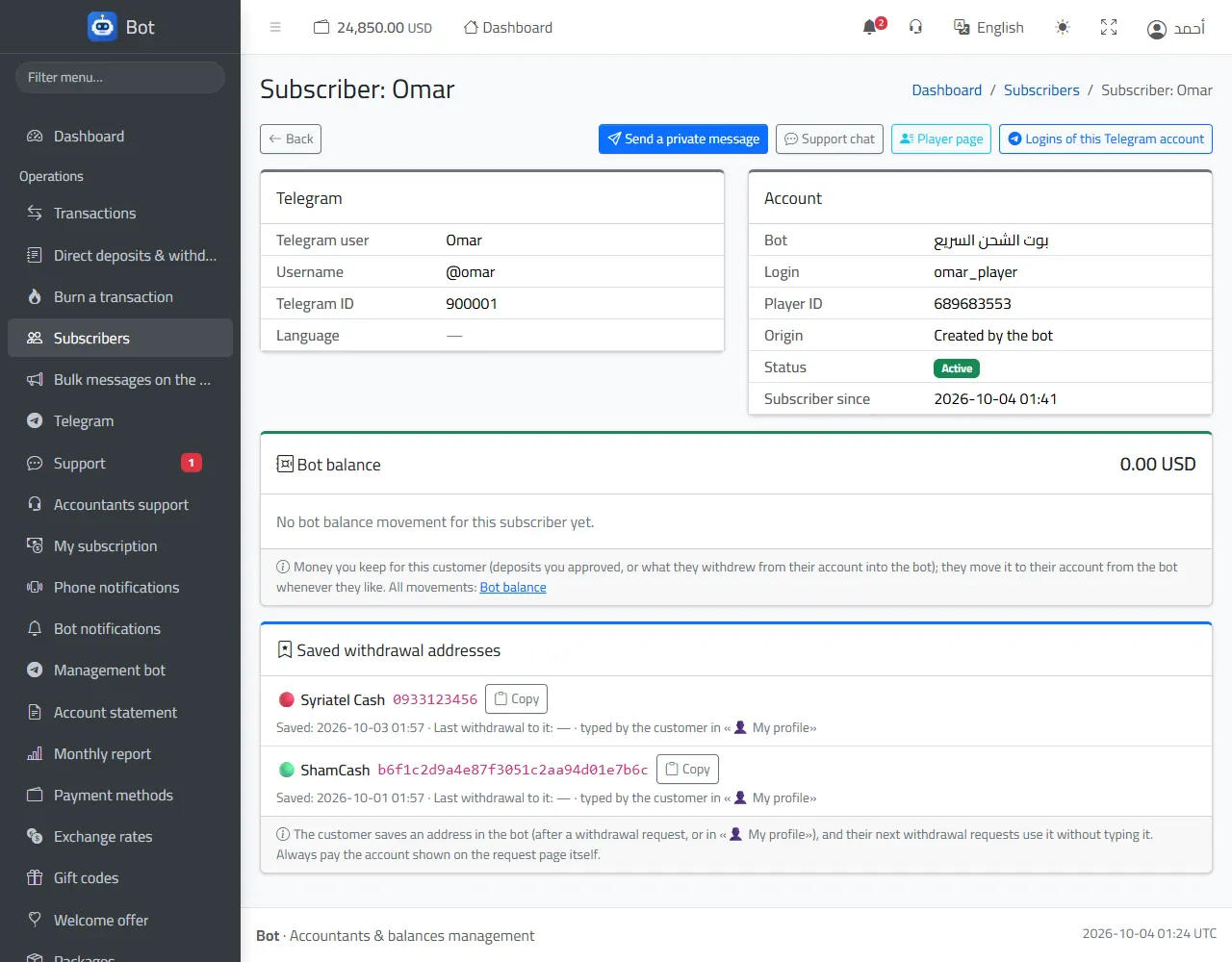
  • The subscriber''s page: their details, their bot balance and its movements, their saved withdrawal addresses in full with a copy button, the support conversation, the player page and the usernames of their Telegram account.
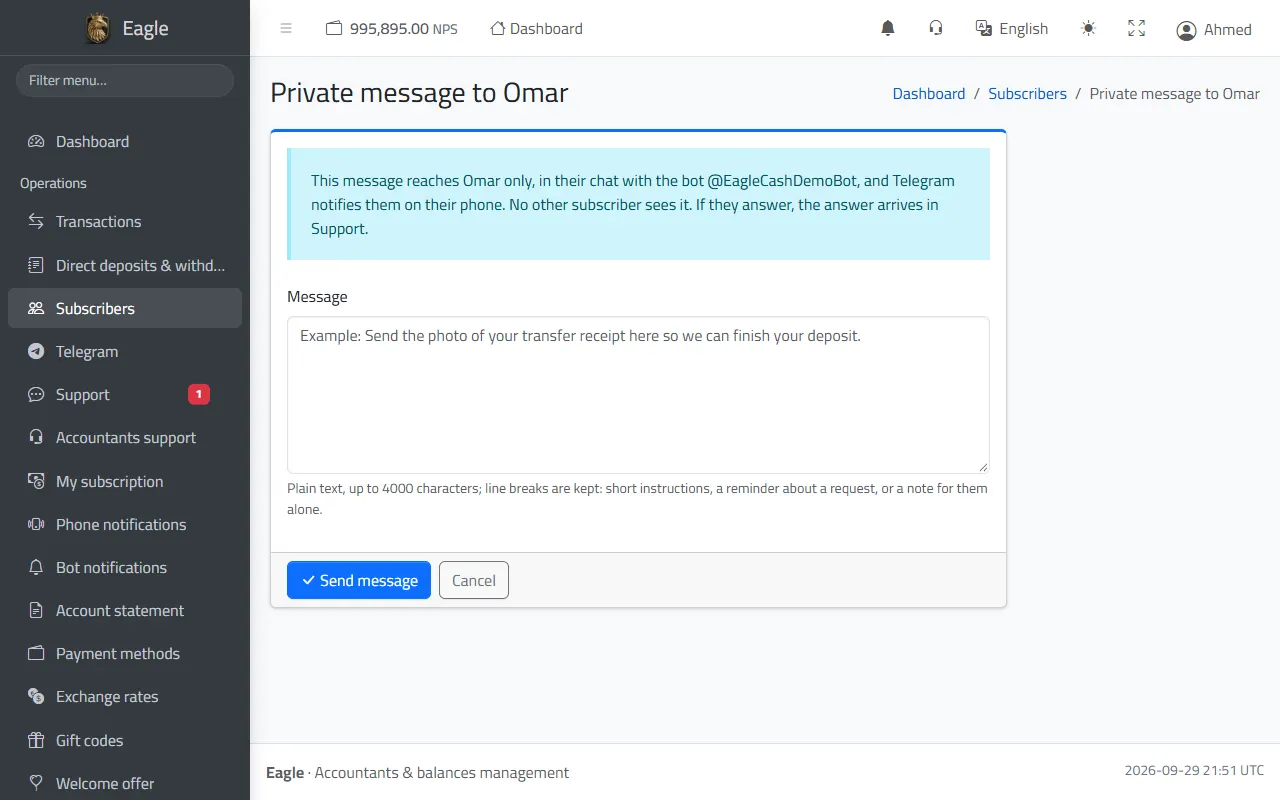
  • «Send a private message»: a message to one subscriber inside the bot, with a notification on their phone; their reply reaches you in Support.
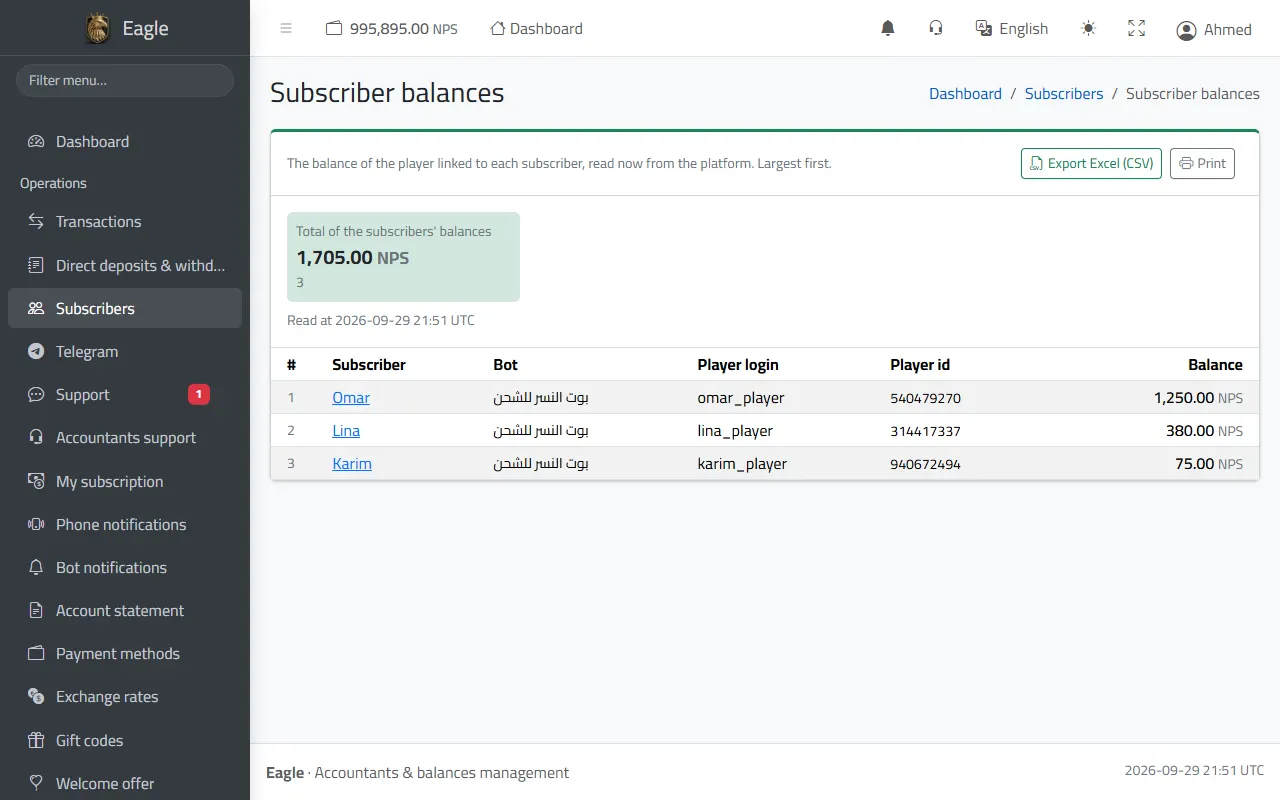
  • «Subscriber balances»: the balance of every linked player read live from the platform, largest first, with the total and printing (the Excel export is for the admin only).
Subscribers: Telegram account, bot, login and player ID.
A subscriber's page: the account, their bot balance and saved withdrawal addresses.
Subscriber balances read live from the platform, with the total.
A private message to one subscriber inside the bot.

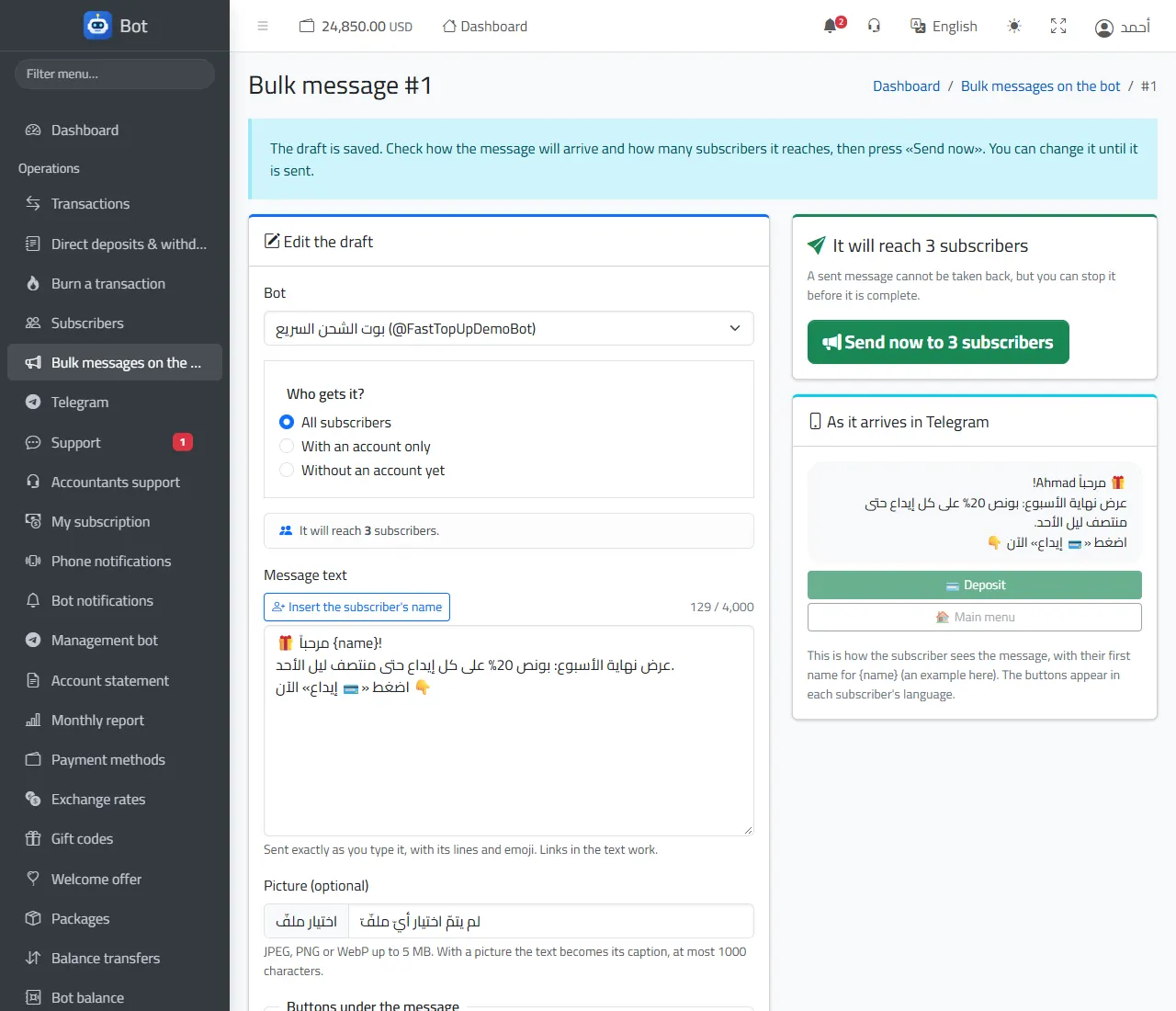
Bulk messages on the bot

Write one message — an offer, news or a notice — and the bot sends it to your subscribers at once, each in their own chat with the bot.

  • Pick the bot and the audience: all subscribers, only those who linked an account, or only those who did not yet.
  • {name} in the text becomes each subscriber''s first name; lines and emoji arrive exactly as you typed them.
  • An optional picture, a «💳 Deposit» button that opens the deposit methods, and a link button to a site or channel.
  • «In the bot's channel»: the bot also posts it in its channel (it is an administrator there), and «💳 Deposit» under the post opens the bot on the deposit methods.
  • The message is saved as a draft so you see it as it will arrive, then «Send now», and you follow the progress: how many received it and how many did not (those who stopped the bot).
Do not overdo bulk messages: one useful message a week works better than daily ones that make subscribers stop the bot.
A bulk message saved as a draft: audience, text and a preview of the message as it arrives, with «Send now».

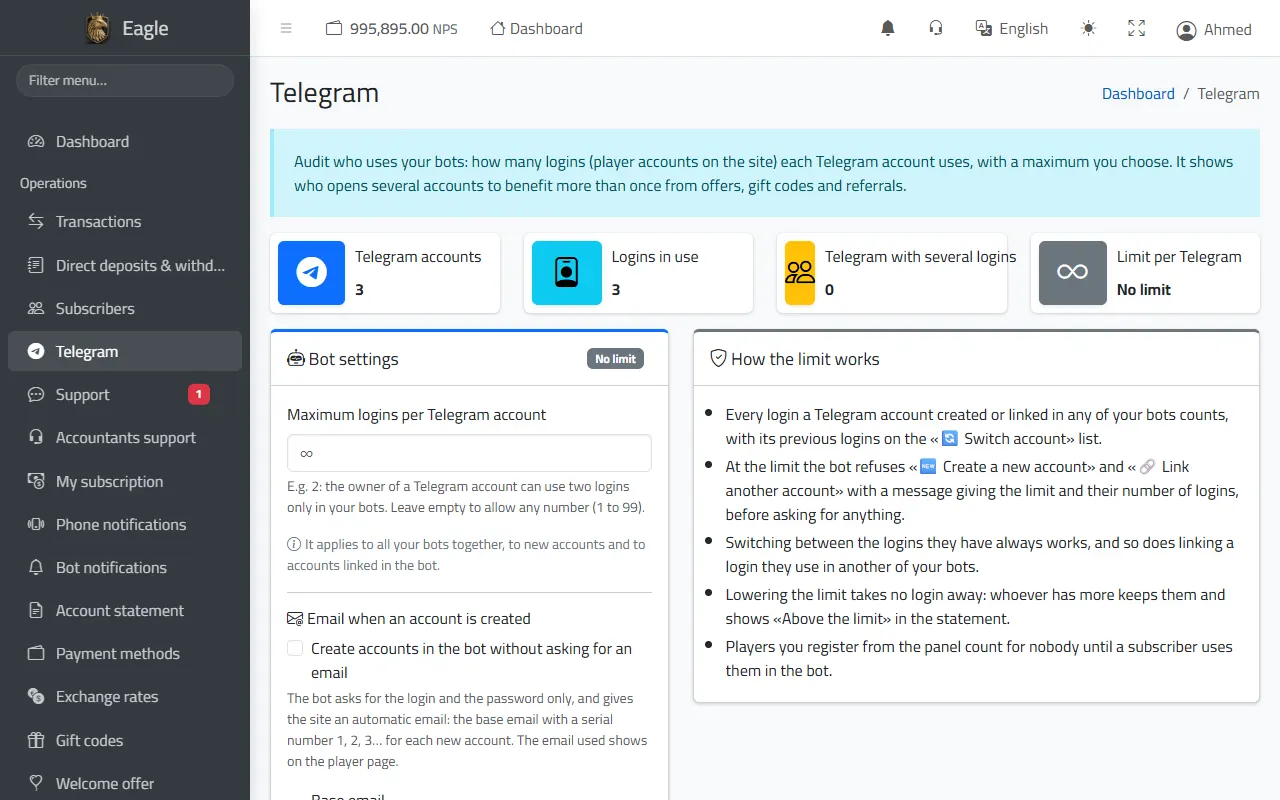
Telegram: account audit and username limit

A report of how many player accounts each Telegram account uses in your bots, to spot people who open several accounts to claim offers, gifts and referrals more than once.

  • A maximum number of usernames per Telegram account (or none); once reached, the bot refuses to create or link another account, while switching between the existing ones keeps working.
  • Account creation in the bot without asking for an email: each new account gets a numbered address based on your main email.
  • The usernames of each Telegram account, and CSV export.
  • «Unlink» a username from a Telegram account: it leaves the report and the limit, the subscriber signed in to it is logged out, and to use it again they link it in the bot with its password, if the bot or the panel created it.
  • «Account buttons in the bot»: hide «🔗 Link an existing account», «🔄 Switch account» and «🚪 Log out» from customers in all your bots, each on its own.
Telegram account audit and the username limit per account.

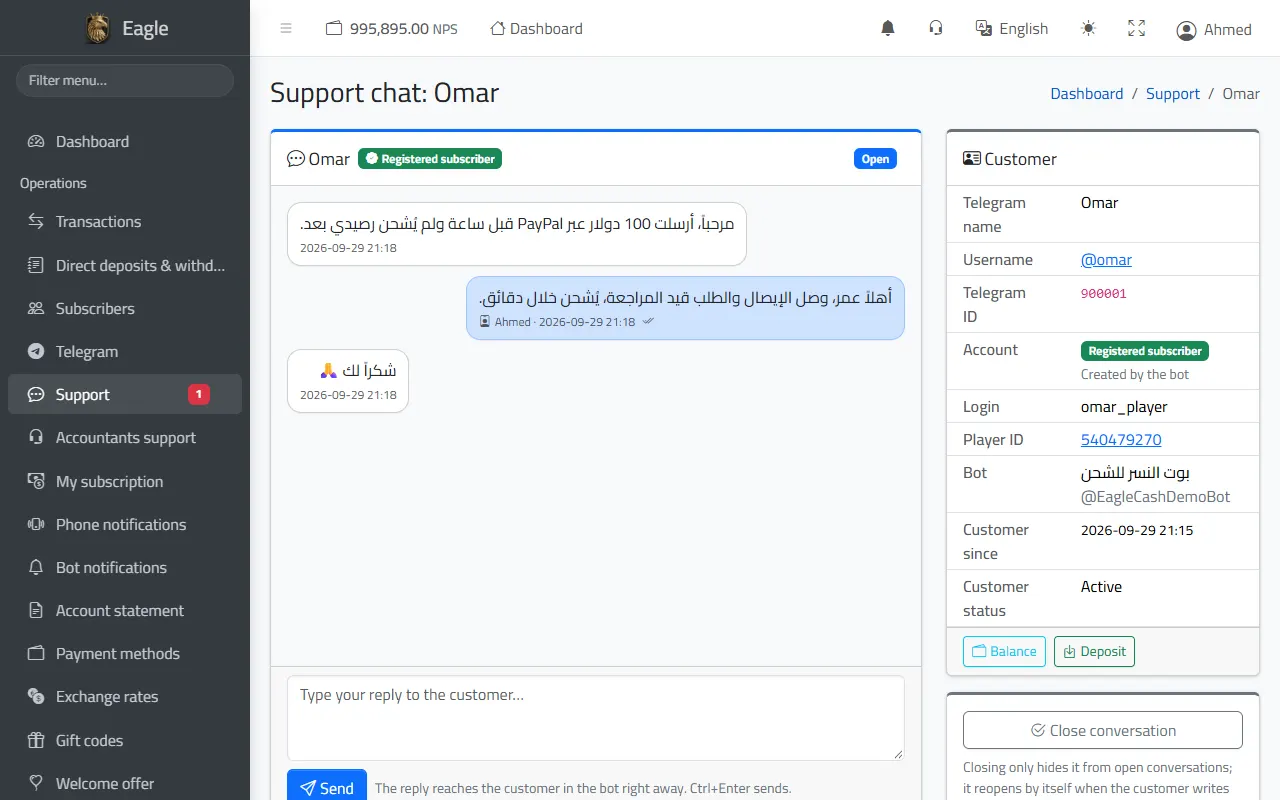
Support for your customers

Whatever a customer writes in the bot outside the deposit and sign-up steps reaches you here at once, with an alert in the panel and in Telegram; your reply reaches them inside the bot.

  • Before writing a new request the customer picks what their problem is: deposit problem, withdrawal delay, cannot log in to the site, balance problem, or general issues. The type shows on the conversation and in the alert, and you can correct it when the customer picked one that does not fit.
  • Filters: unread, open, closed, all, and the problem type, with search.
  • Next to the conversation, the customer card: account, player ID and bot, with a button to see and top up their balance.
  • Reply with text or a picture; the conversations work comfortably on a phone and in the Android app.
  • Closing a conversation only hides it; it reopens by itself when the customer writes again.
  • «Support team» and «Support bot» (turned on by the administration when you ask): staff with their own sign-in who see support only and answer from the panel or a Telegram bot, their replies signed with their names.
A support conversation with a customer, and the customer card next to it.

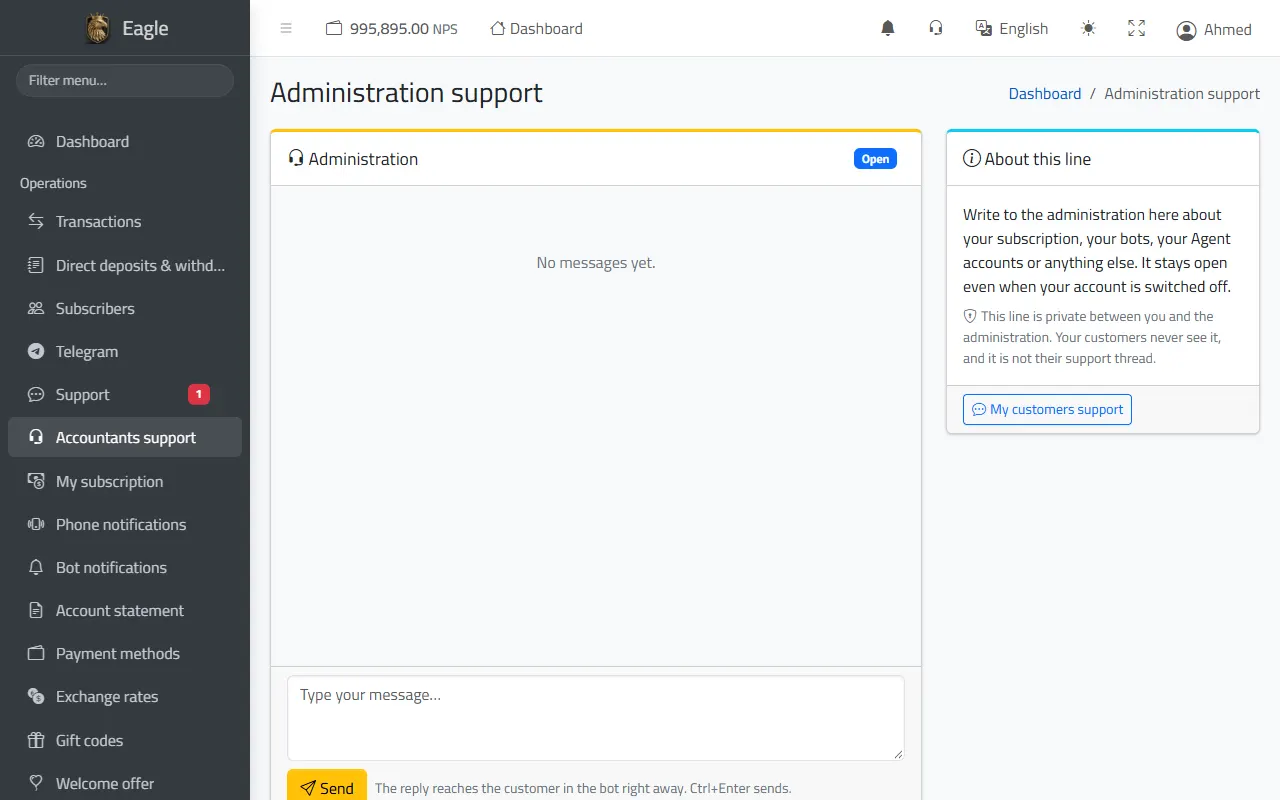
Messages to the administration (accountants support)

A private channel between you and the system administration about your subscription, bots, Agent accounts or anything else. Your customers never see it, and it stays open even if your account is suspended.

  • Messages reach the administration at once; their reply shows here and you get an alert.
  • The administration''s notices to all accountants arrive here too, with a notification on your phone.
  • Quick access from the headset icon in the top bar.
Messages to the administration.

Notifications: bot, phone and bell

Three alert channels working together so you never miss a request.

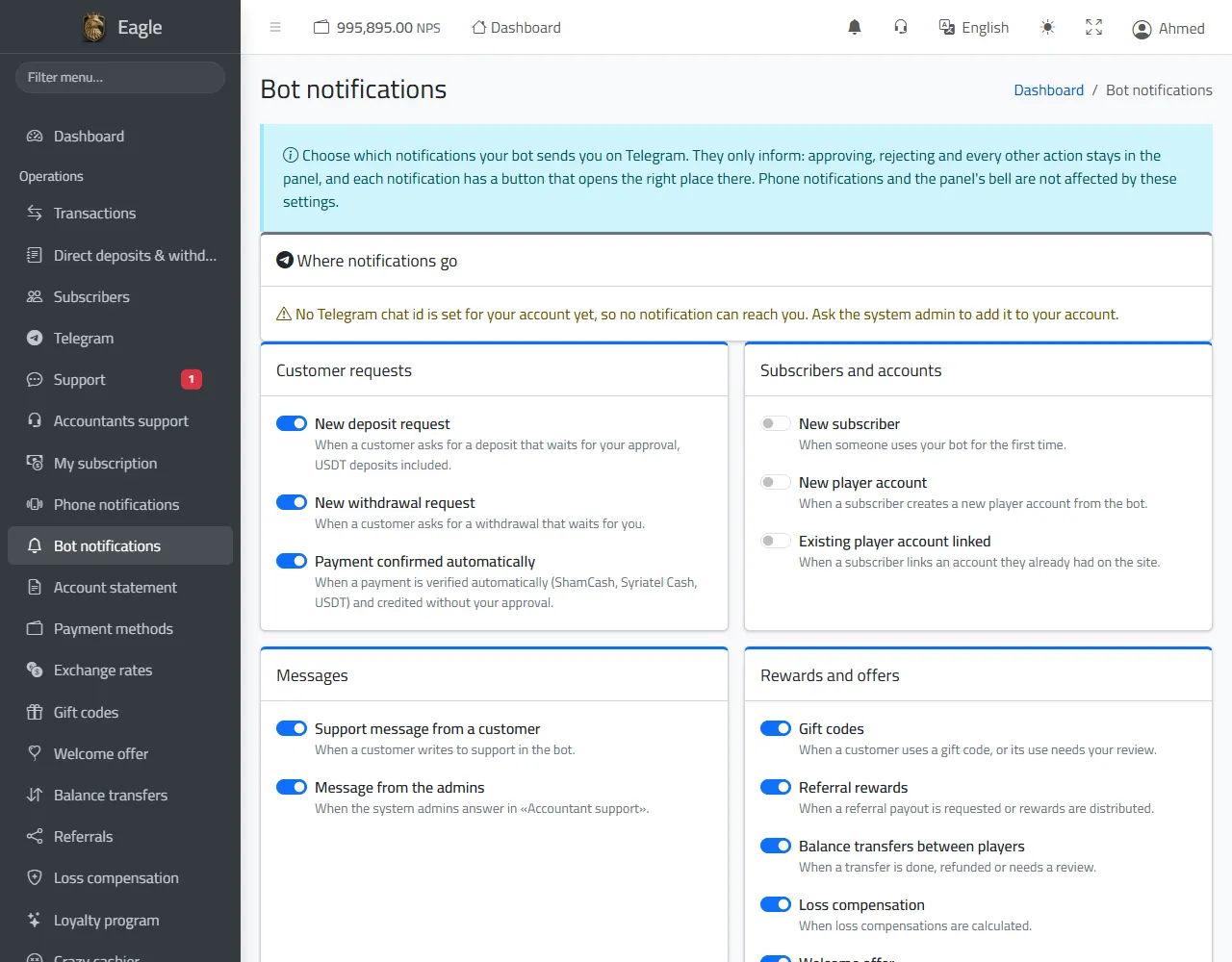
  • «Bot notifications»: choose what reaches you in Telegram: deposit and withdrawal requests, automatically confirmed payments, new subscribers, support and administration messages, gifts, referrals, compensation, loyalty and the «Crazy cashier», and sign-in alerts for your account.
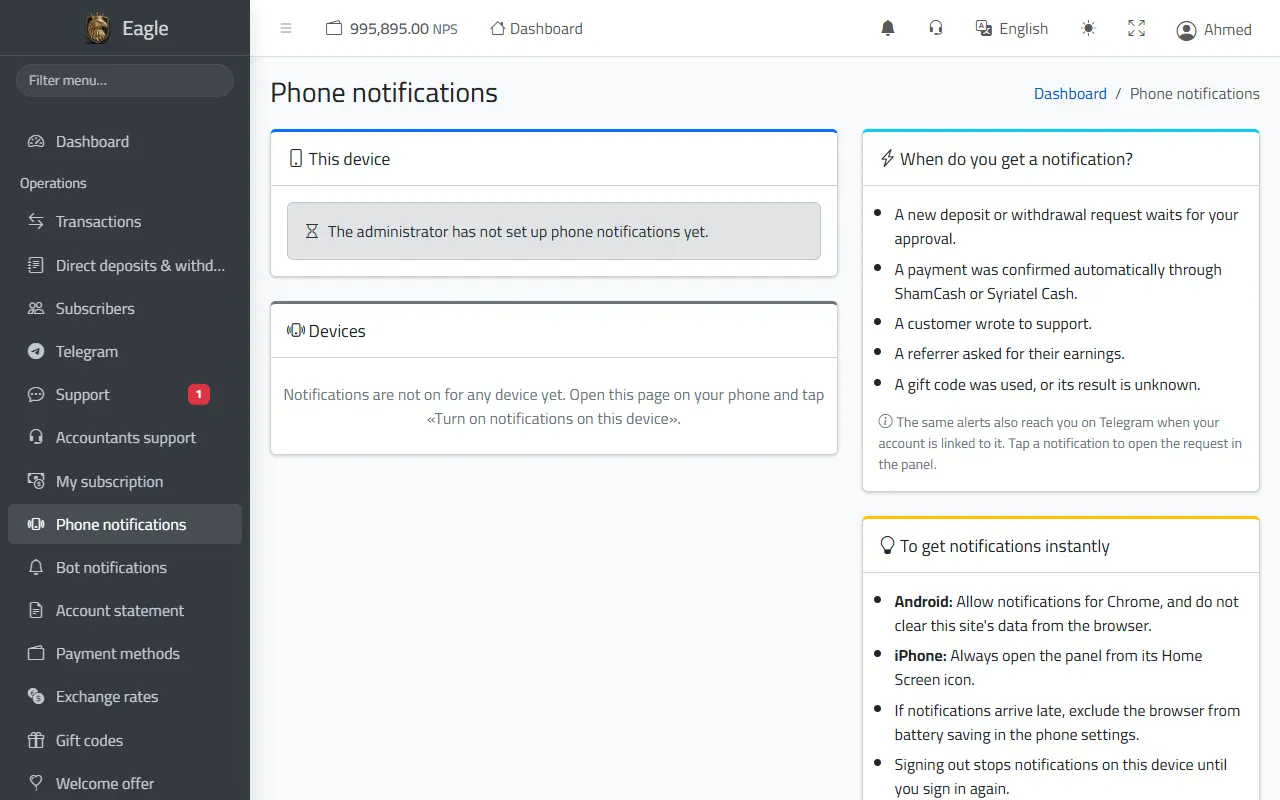
  • «Phone notifications»: turn them on on your phone to get requests at once even with the browser closed (on iPhone from the app icon on the home screen).
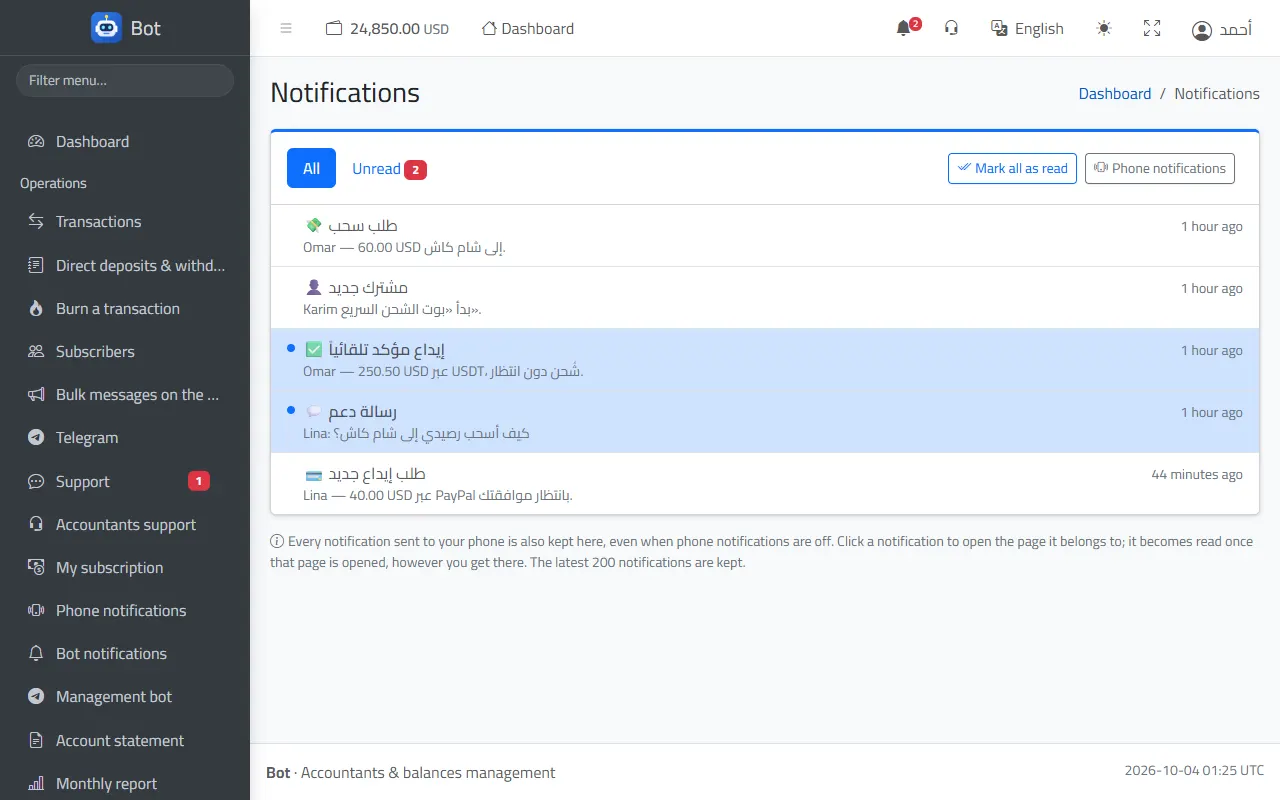
  • The panel''s bell and the «Notifications» page keep the last 200 notifications, and a tap opens the request directly.
Install the panel as an app on your phone with «Install the app» or the Android app: it opens with one tap and notifications work better.
Choosing which bot notifications reach you in Telegram.
Turning on phone notifications, and the devices they reach.
The «Notifications» page: what reached you lately; a tap opens the request.

Management bot

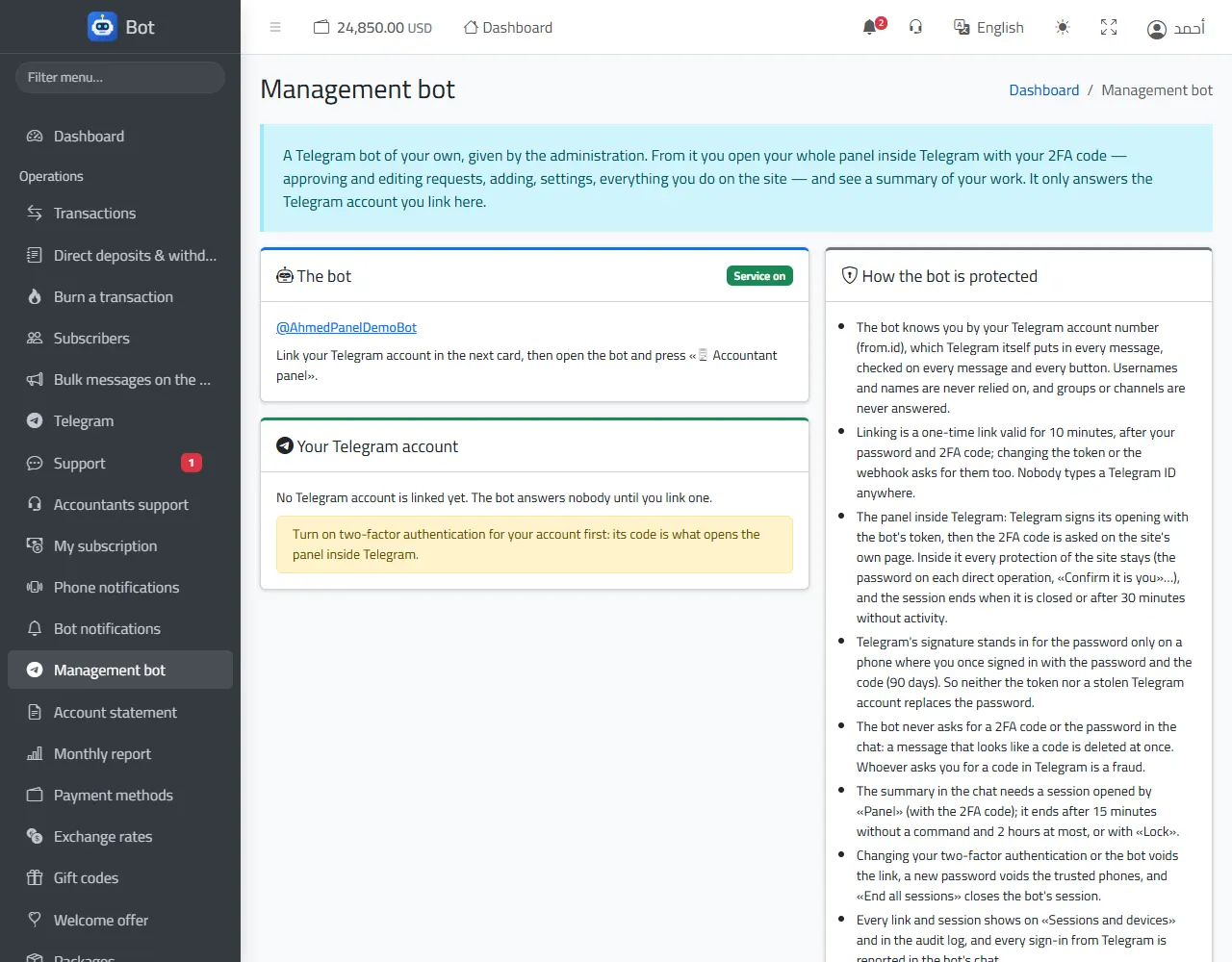
Your own Telegram bot, given by the administration and separate from your customers' bots. From it you open your whole panel inside Telegram — approving and editing requests, adding, settings — and see a summary of your work.

  • You link your Telegram account with a one-time link from this page; the bot answers no other account.
  • Opening the panel inside Telegram needs your two-step verification code, and the session ends when you close it or after some idle time.
  • The bot never asks for your verification code or password inside the chat.
  • Every link and session shows in «Sessions and devices» and in the audit log.
Turn on two-step verification in Telegram itself too (the cloud password): it protects your account if your SIM card is stolen.
The management bot: the bot, linking your Telegram account, and how it is protected.

Statement

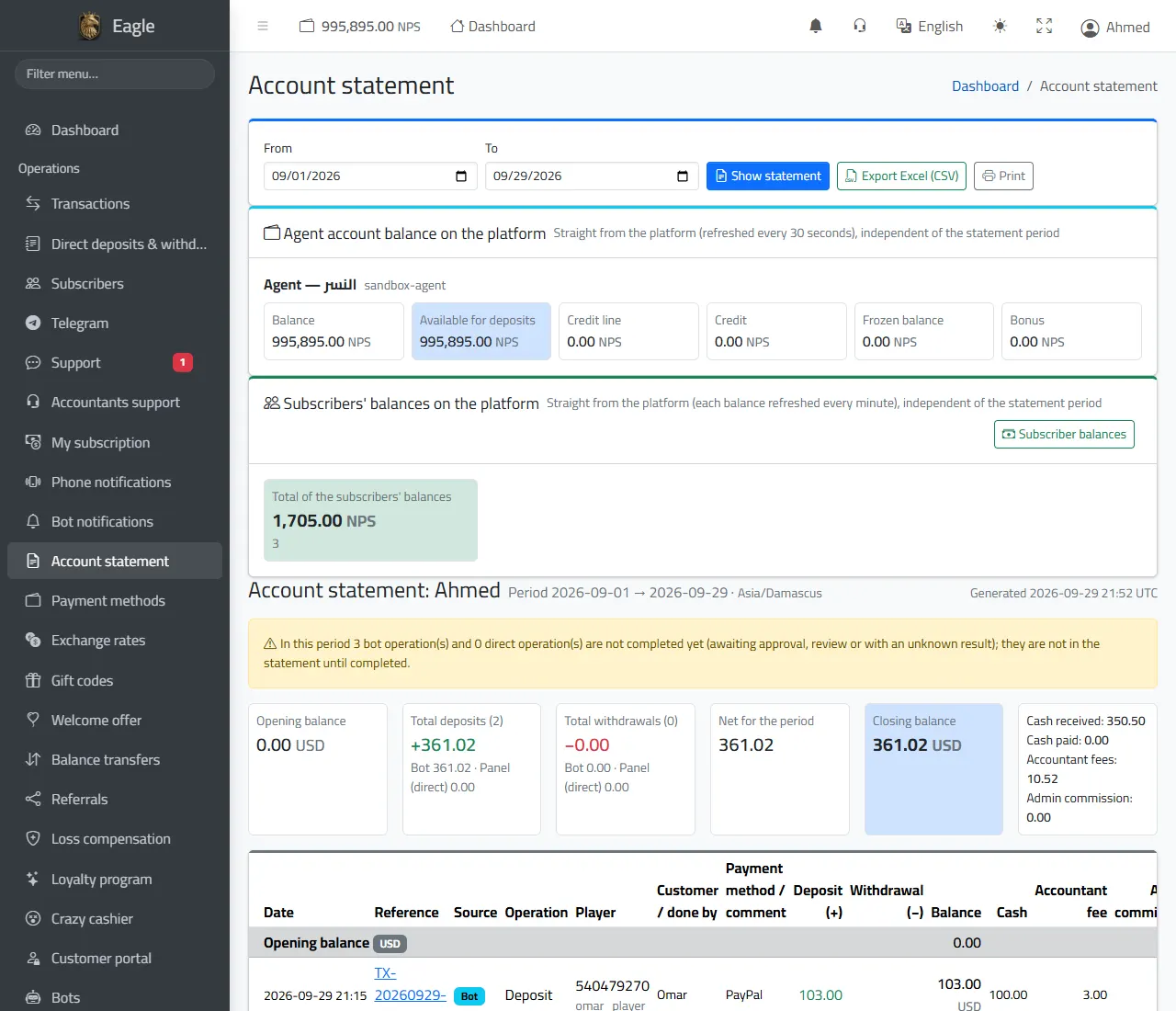
A financial statement for any period in the reports time zone: opening balance, total deposits and withdrawals (from the bot and the panel), the period's net, and closing balance.

  • For each operation: date, reference, source, player, customer, payment method, deposit or withdrawal, cash received or paid, and your fee.
  • The live balance of your Agent account from the platform, and the total of your subscribers'' balances.
  • Excel (CSV) export and printing.
  • Only completed operations count; unsettled ones are listed in a notice at the top.
Statement: the live Agent balance, subscriber balances, and balances and totals for any period.

Monthly report

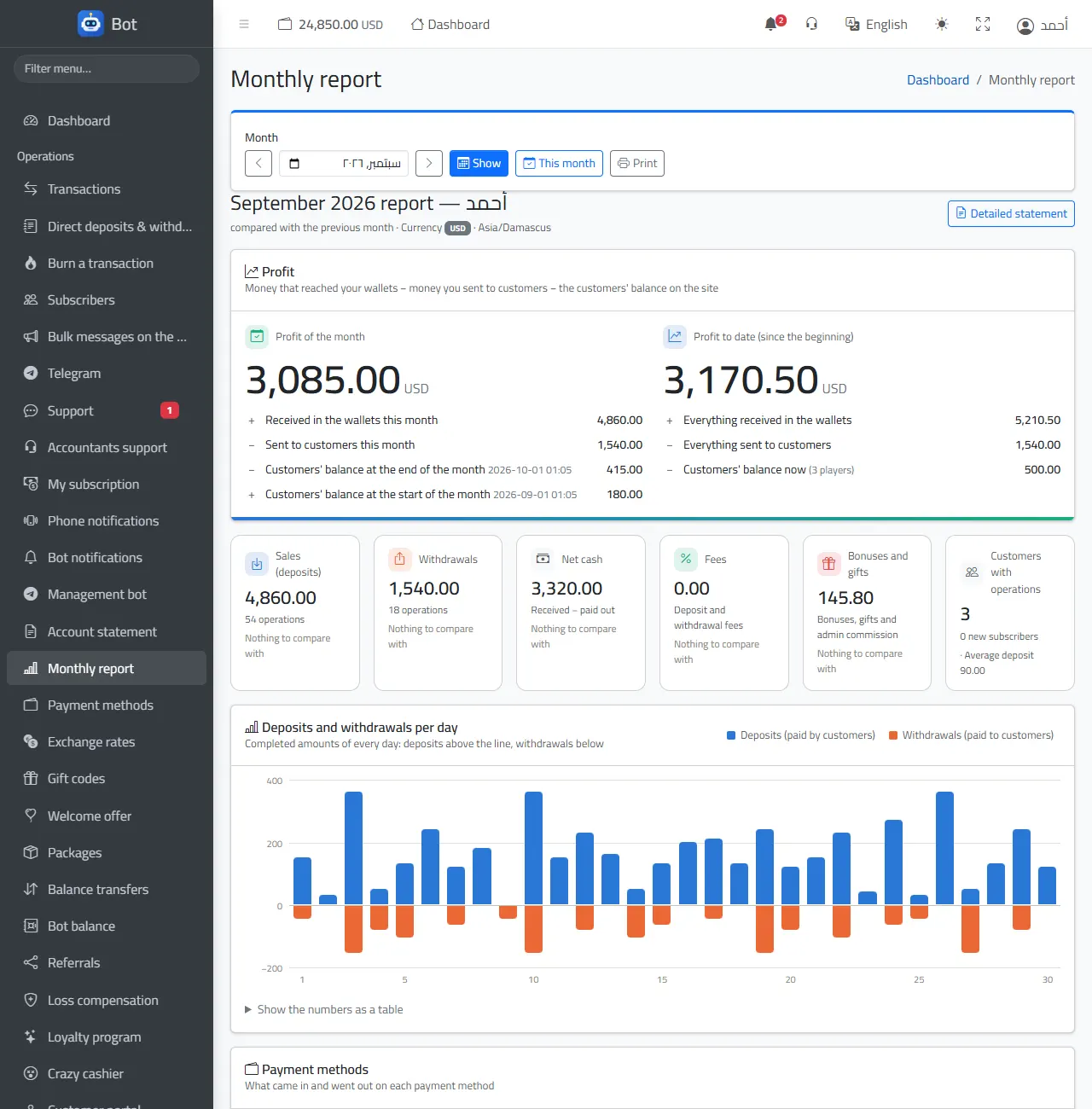
All of a month's money on one page with charts, compared with the same days of the previous month.

  • Real profit: what reached your wallets − what you sent to customers − the customers'' balances on the site, for this month and since the start.
  • Cards: deposits, withdrawals, net cash, fees, bonuses and gifts, and the customers with operations.
  • Daily deposits and withdrawals, each payment method''s share, the most active customers, and request statuses.
  • Move between months, print, and «Show the figures in a table» under every chart.
Monthly report: profit for the month and since the start, the cards, and daily deposits and withdrawals.

3. Payment methods and prices

Payment methods

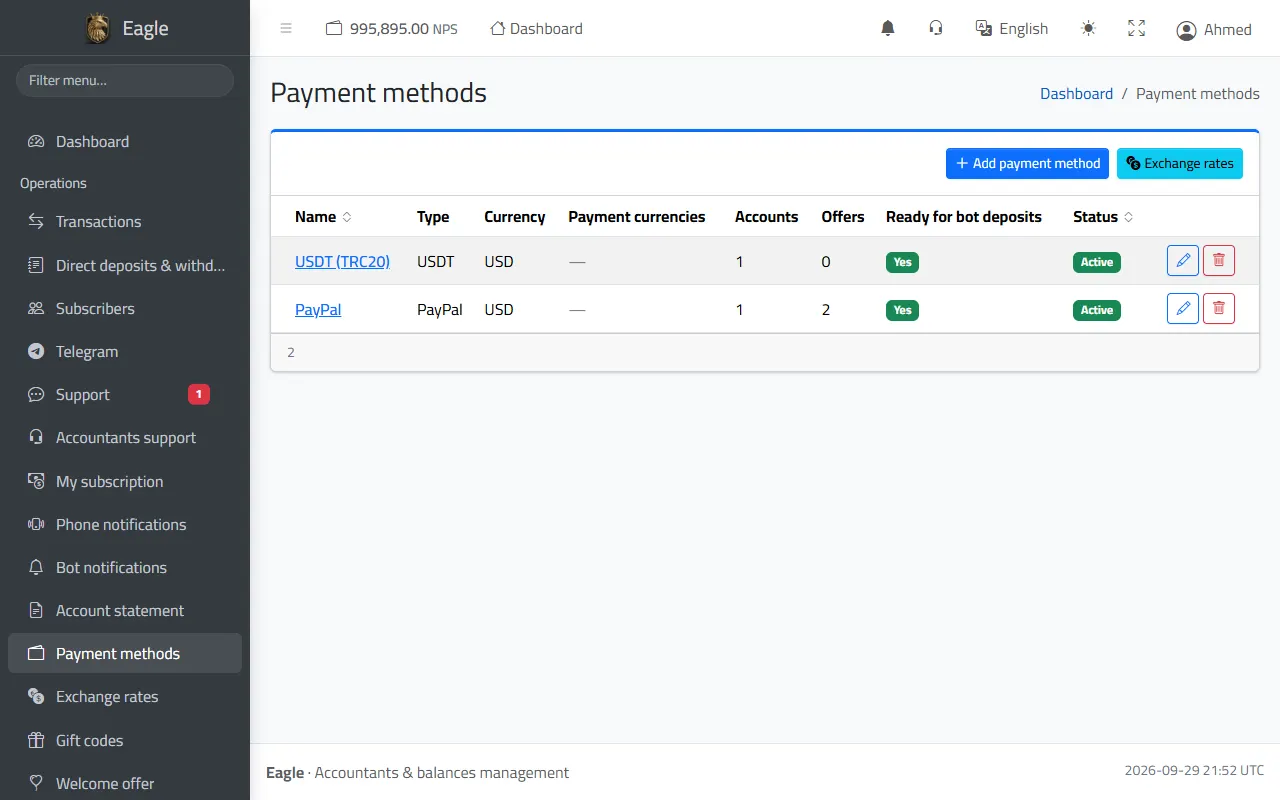
You decide how your customers pay you and how you pay them, each method with its own settings.

  • Types: Syriatel Cash, ShamCash, USDT, crypto, PayPal, bank transfer, or another method.
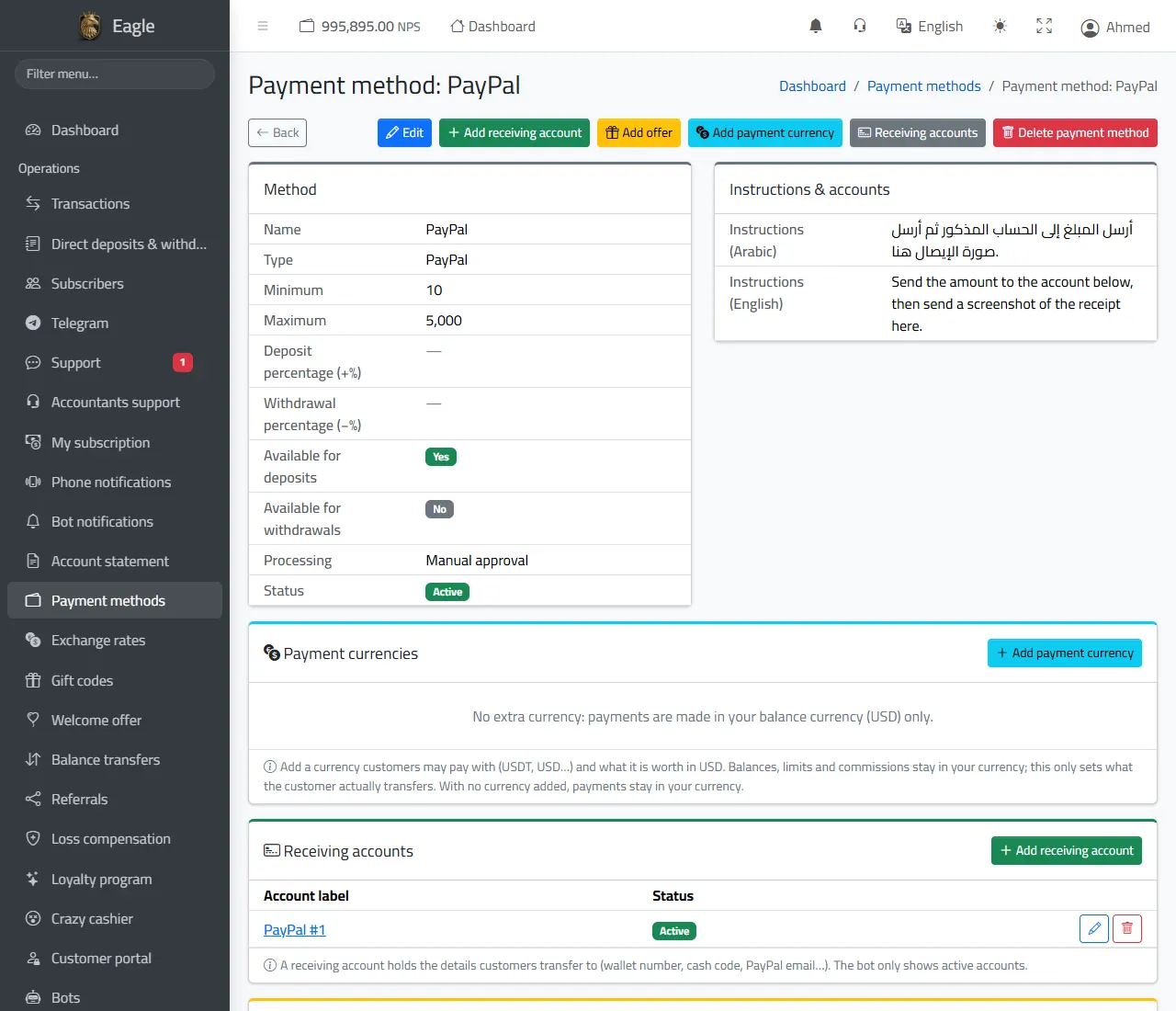
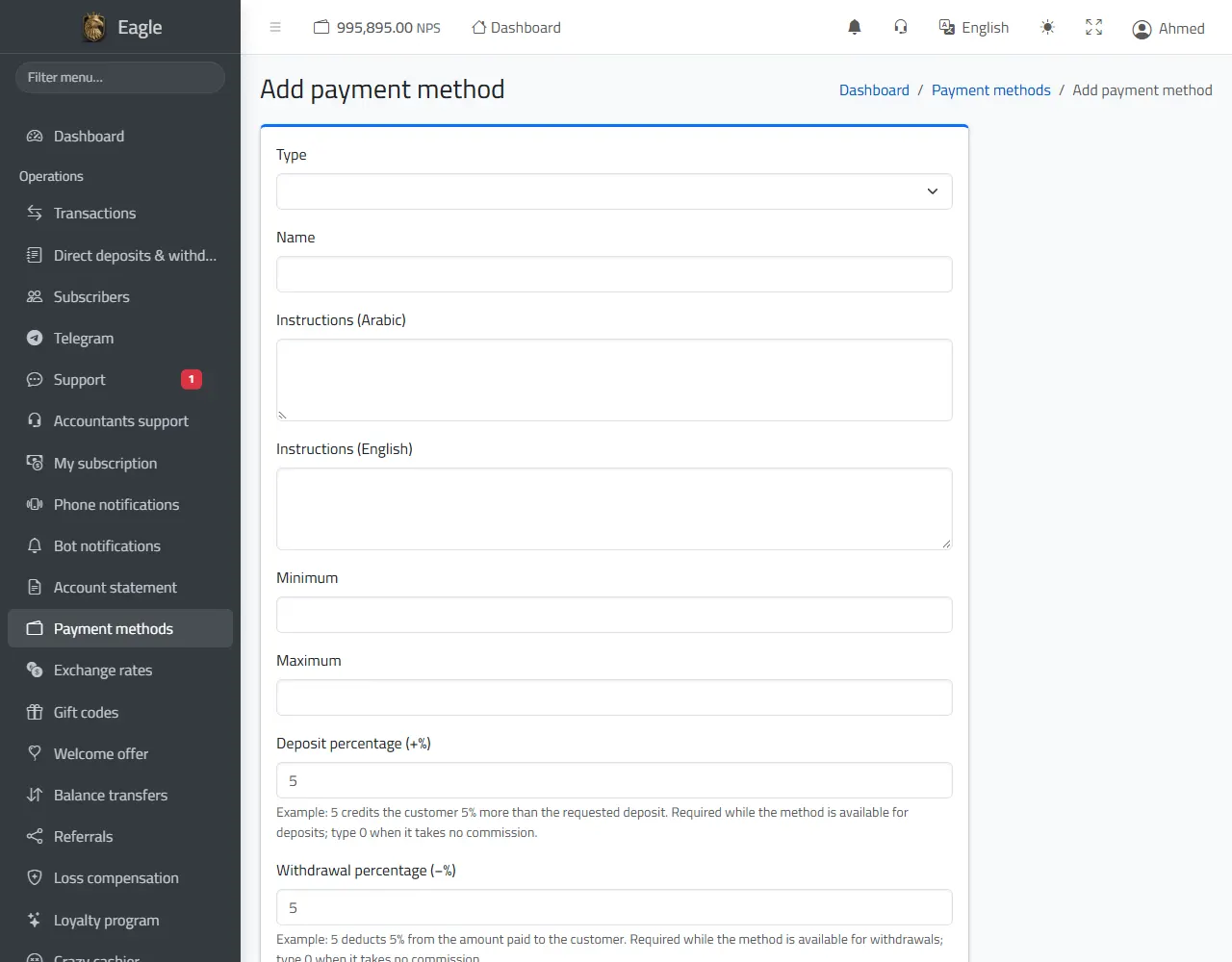
  • For each method: the minimum and maximum deposit, another minimum and maximum for withdrawals, the deposit rate (+%) and withdrawal rate (−%), deposits and/or withdrawals, and the bots that show it.
  • Processing: manual approval, or automatic for Syriatel Cash, ShamCash and USDT (the system checks the transfer arrived and credits without waiting for you).
  • Receiving accounts: the numbers and addresses customers transfer to, shown by the bot with a copy button and a QR code.
  • Payment instructions in Arabic and English, and extra payment currencies at an exchange rate you set.
Payment methods with currency, accounts, offers and status.
A payment method's page: deposit and withdrawal limits, processing, instructions, receiving accounts and offers.
Adding a payment method: type, limits, rates, processing and bots.

Deposit offers

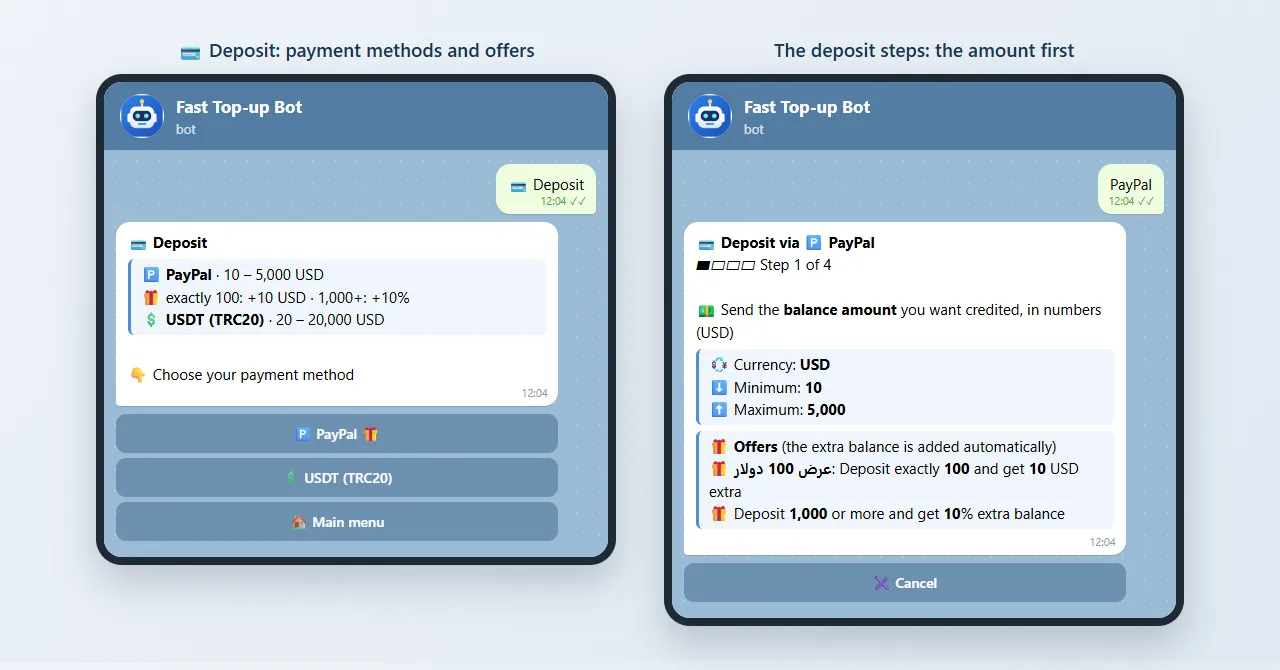
Under each payment method add offers such as «deposit 100, get 110» or «1,000 or more: 10% extra».

  • An offer for an exact amount or from an amount up, the bonus as a percentage or a fixed amount, with an optional period.
  • The bot applies the best matching offer automatically and shows it to the customer before paying and on the receipt.
  • The bonus comes out of your net and does not change what the customer pays.

Exchange rates

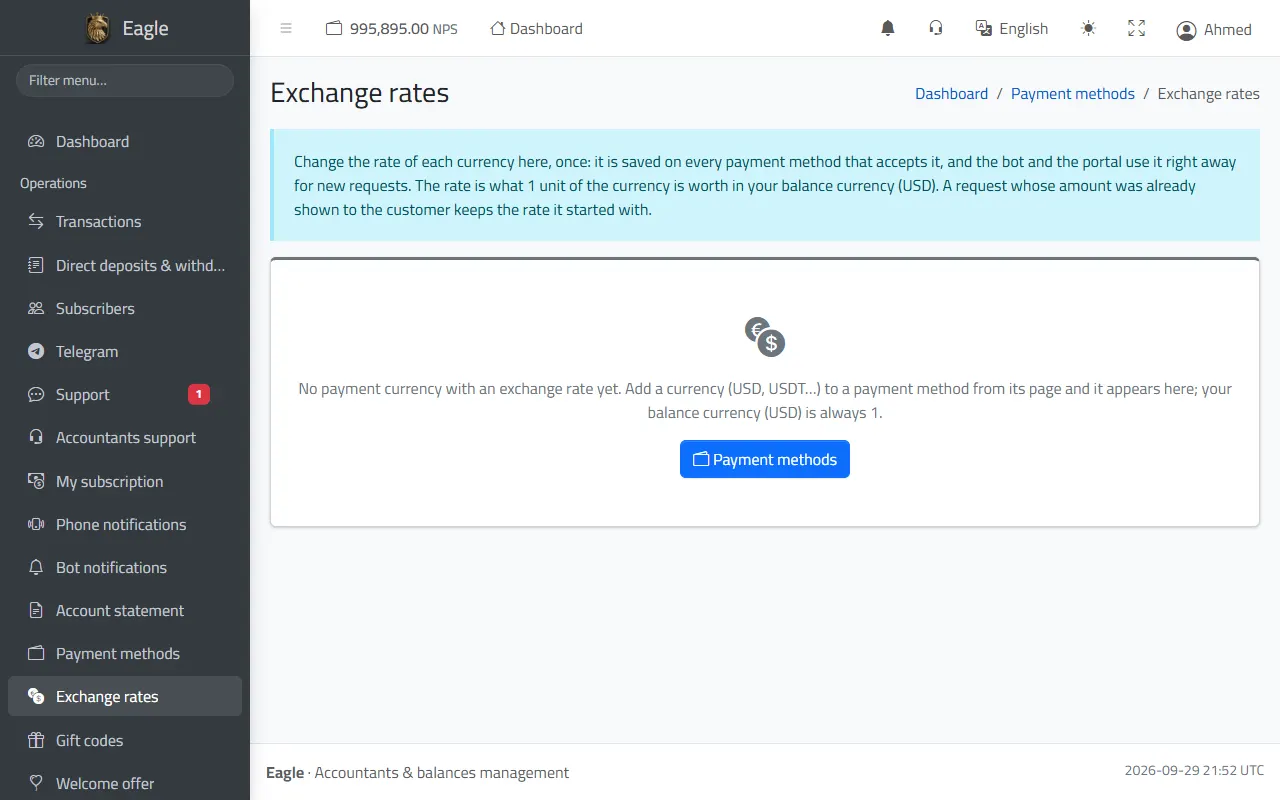
If you accept payment in a currency other than your balance's, change its rate here once and it applies to every payment method that takes it; the bot and the portal use it at once for new requests.

  • Rate = how much 1 of that currency is worth in your balance''s currency.
  • A request whose amount was already shown to the customer keeps the rate it started with.
Exchange rates of the payment currencies.

ShamCash and Syriatel Cash (API SYRIA)

Automatic payment checks: the customer sends the transaction number in the bot, the system looks for the incoming transfer with that number on your account and credits them at once without waiting for you; if they sent a different amount than they typed, what actually arrived is credited (while «Credit what actually arrived» is on in «Operation settings»).

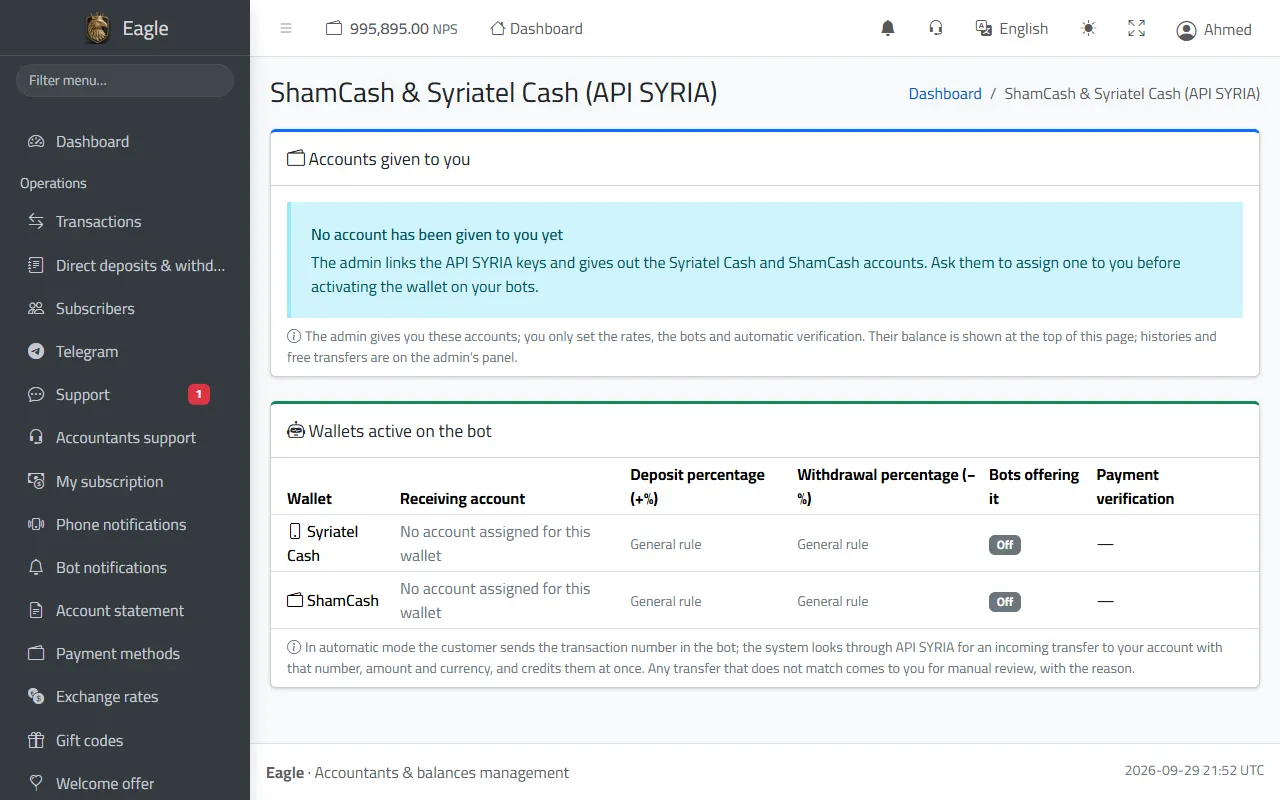
  • The administration connects the API SYRIA key and assigns Syriatel Cash and ShamCash accounts to you; you set the rates, the bots and automatic checking.
  • Each wallet''s balance is shown at the top of the page.
  • A ShamCash or Syriatel Cash deposit with a transaction number the wallet does not have is cancelled within seconds: the wallet answered and there is no transfer with that number (after a second look 10 seconds later), so the customer is asked for a new deposit with the right number; it only waits for you when the wallet cannot be reached or you turned «Cancel at once when the number is not found» off in «Operation settings».
  • When the request waits for you or the number is wrong, the bot tells the customer at once, who checks again or corrects the number; what cannot be settled automatically (a currency the method does not take, an old transfer, another amount with «Credit what actually arrived» off) comes to you for review with the reason.
  • When the agent account''s balance is too low, the confirmed request waits for you with its transaction number and the customer is asked to contact you: top up the agent balance, then approve the request.
  • «Money sent»: withdrawals you paid from the panel through API SYRIA. «Used transfers»: every transfer number used, blocked or burnt, so none is accepted twice.
ShamCash and Syriatel Cash: the accounts assigned to you and the wallets enabled on the bot.

4. Packages, offers and rewards

Gift codes

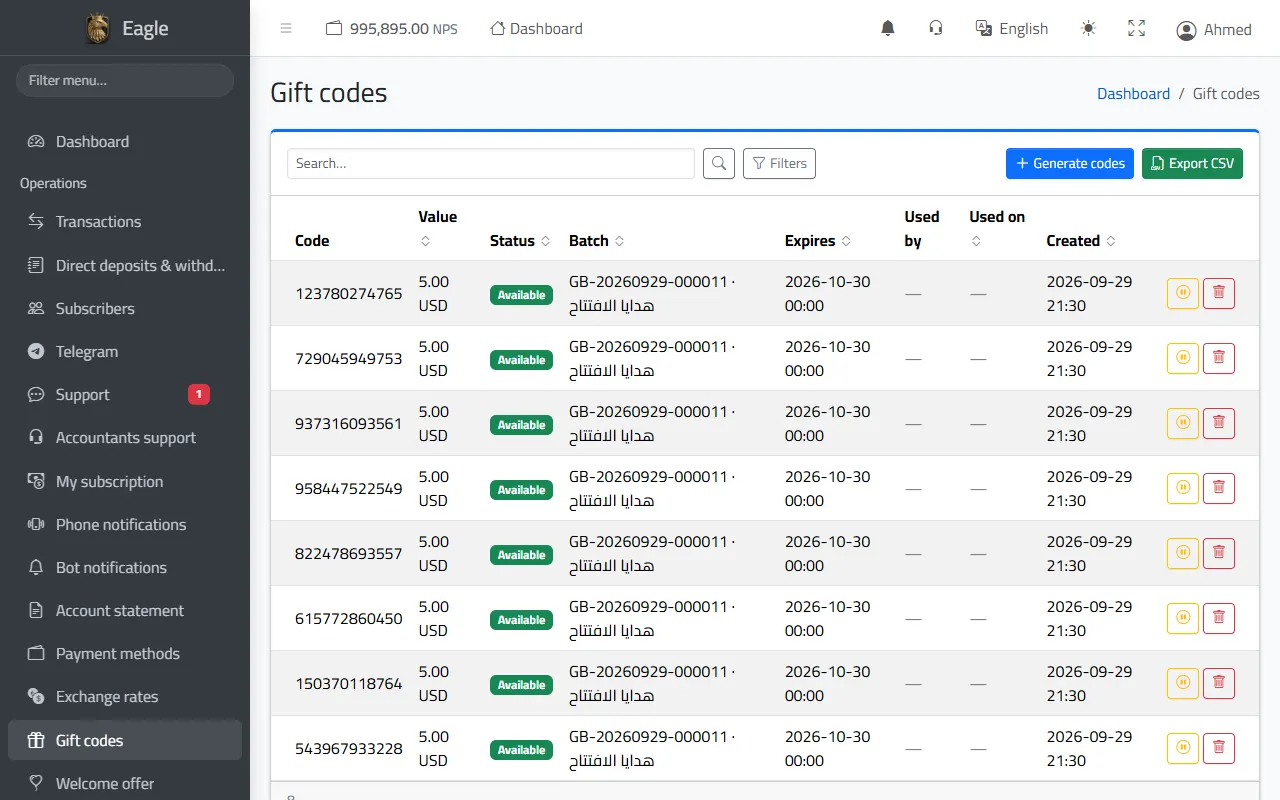
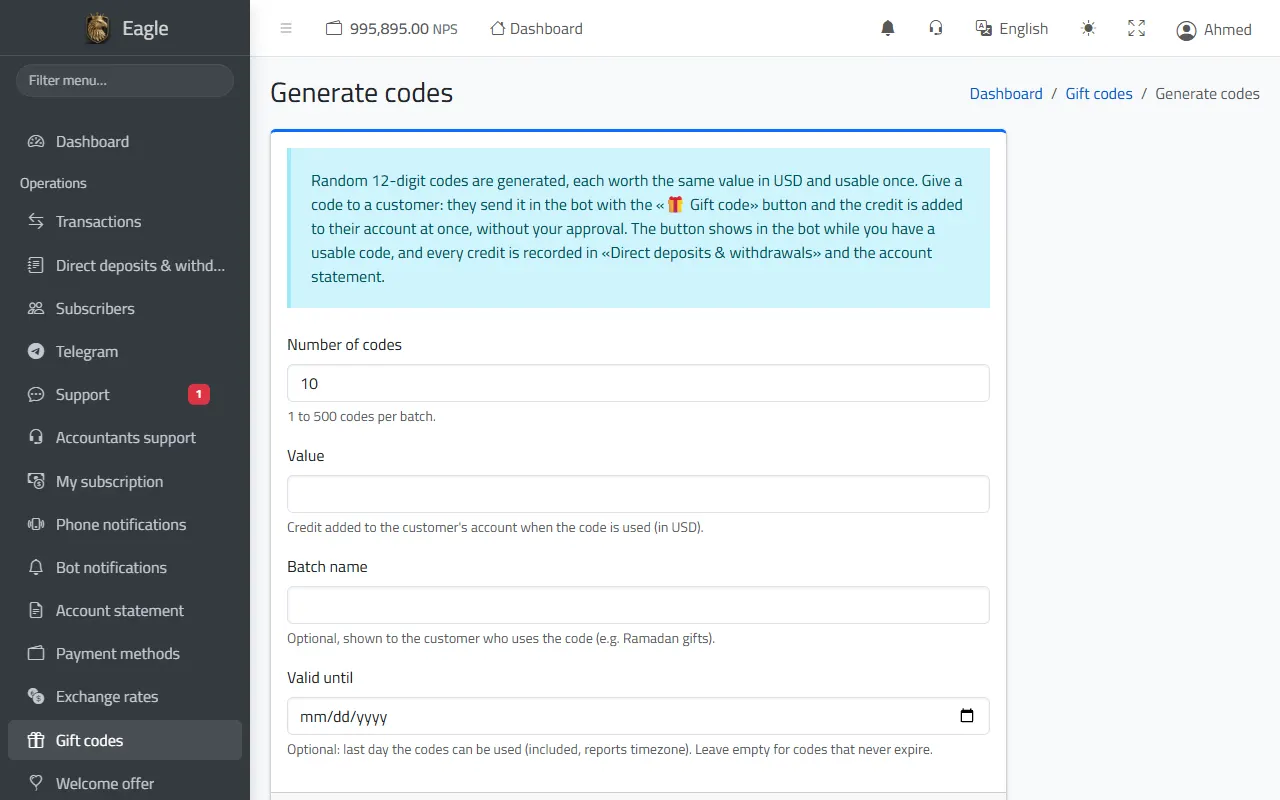
Generate batches of random 12-digit codes, each worth an amount in your currency and usable once. The customer sends the code in the bot from «🎁 Gift code» and is credited at once, without your approval.

  • 1 to 500 codes per batch, with a batch name the customer sees and an optional expiry date.
  • Statuses: available, used (by whom and when), disabled, expired; a code can be disabled or deleted before it is used.
  • Copy the codes in one click (all of them or only the unused ones) to paste in WhatsApp or Telegram, download them as an Excel file, and show the whole list on one page.
  • Protection against guessing: 5 wrong codes lock the feature for that customer for an hour.
Gift codes with value, status and batch, and the copy and Excel buttons.
Generating a batch of codes: count, value, name and expiry date.

Welcome offer

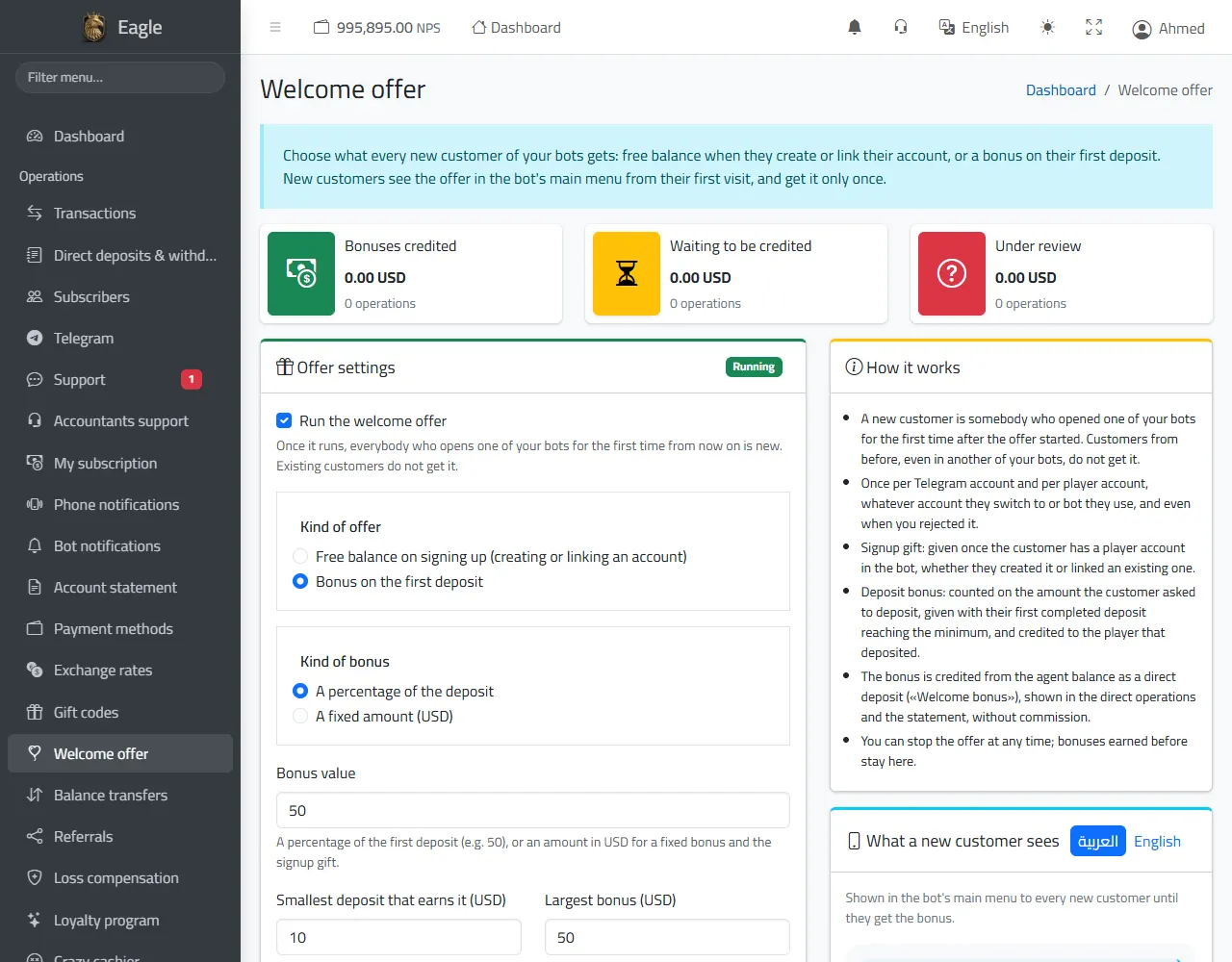
A reward for every new subscriber of your bots: free balance when they create or link their account, or a bonus on their first deposit (a percentage or a fixed amount).

  • A minimum qualifying deposit and a bonus cap.
  • Automatic credit, or waiting for you to press «Credit the bonus».
  • «To the bot balance»: the bonus goes into the subscriber's bot balance instead of the player account, and they move it whenever they like.
  • Or loyalty points instead of balance: a fixed number of loyalty program points the subscriber spends from «⭐ My points».
  • Once per Telegram account and per player account, even through another of your bots.
  • The new subscriber sees the offer in the bot''s welcome message; statistics of credited, pending and in-review bonuses and a full log.
The welcome offer: statistics, settings and how it works.

Packages

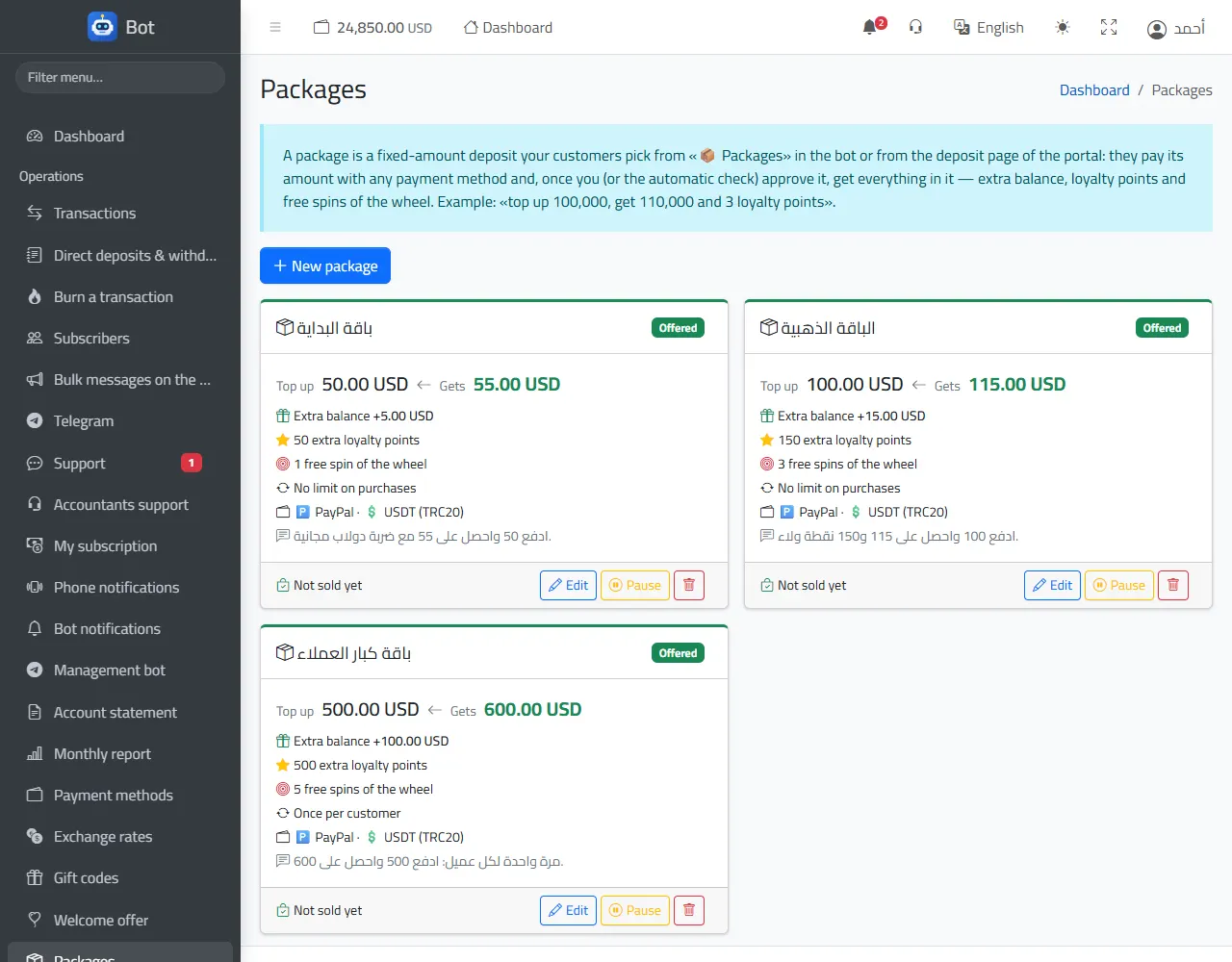
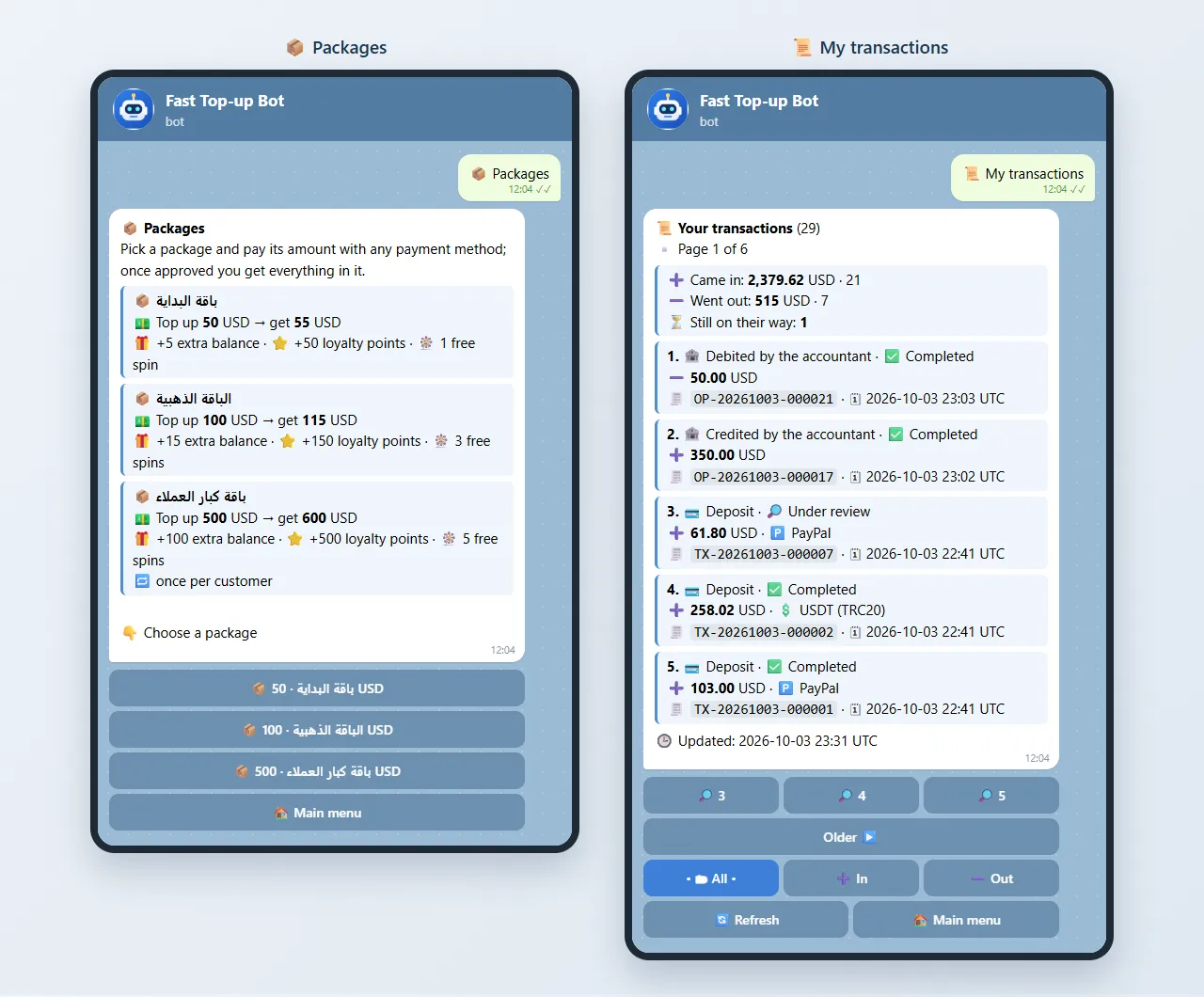
A package is a fixed-amount deposit the subscriber picks from «📦 Packages» in the bot or from the portal's deposit page: they pay its amount with one of the payment methods, and once you approve (or the automatic check confirms) they get everything in it.

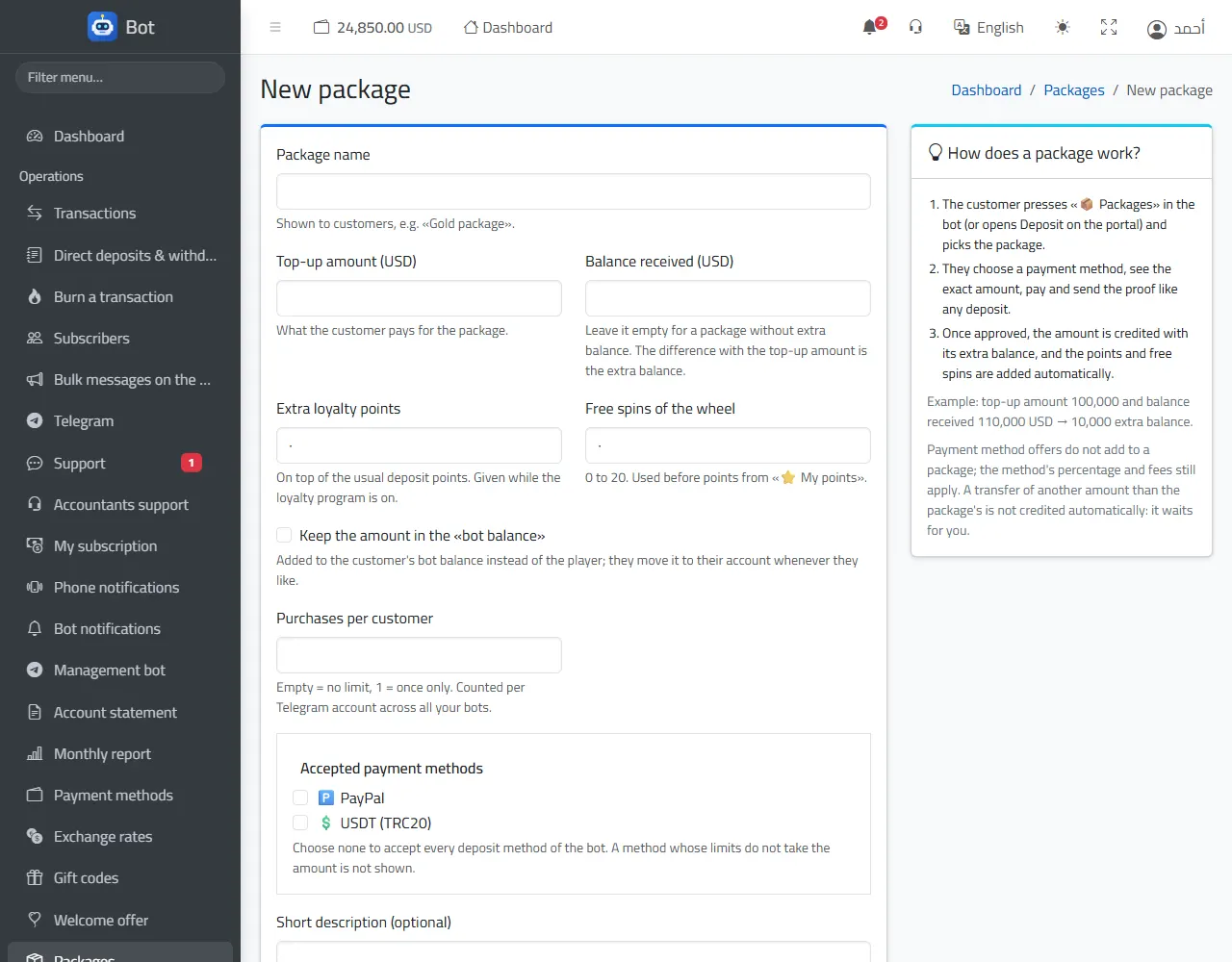
  • Each package: a name, the amount to pay and the balance credited (the difference is the extra balance), extra loyalty points and free wheel spins.
  • «To the bot balance»: the package goes to the subscriber''s bot balance instead of the player account, to move whenever they like.
  • A purchase limit per customer (for example once), the allowed payment methods, an optional period from day to day, and a description shown under the name.
  • Switching a package off hides it at once; open requests complete with what they were bought with.
Packages: the amount, extra balance, points and free spins of each package.
Creating a package: the amount, the balance credited, points and spins, purchase limit, payment methods and period.

Bot balance

Money your customer keeps in the bot, outside their account on the site: a deposit kept there or a withdrawal from their account into it, moved to their account in parts whenever they like, without your approval.

  • When it is on, the customer chooses on every deposit: «To my account now» as usual, or «Keep it in my bot balance».
  • «Withdraw into the bot» (a second setting): takes the amount from their account on the site at once and adds it to their bot balance, without your approval.
  • «💸 Final withdrawal»: the customer asks to receive their bot balance in cash, and a normal withdrawal request reaches you.
  • This page lists every bot balance movement of all your subscribers; the subscriber''s page shows their balance and its movements.
Bot balance: the settings and every subscriber's bot balance movements.

Referral program

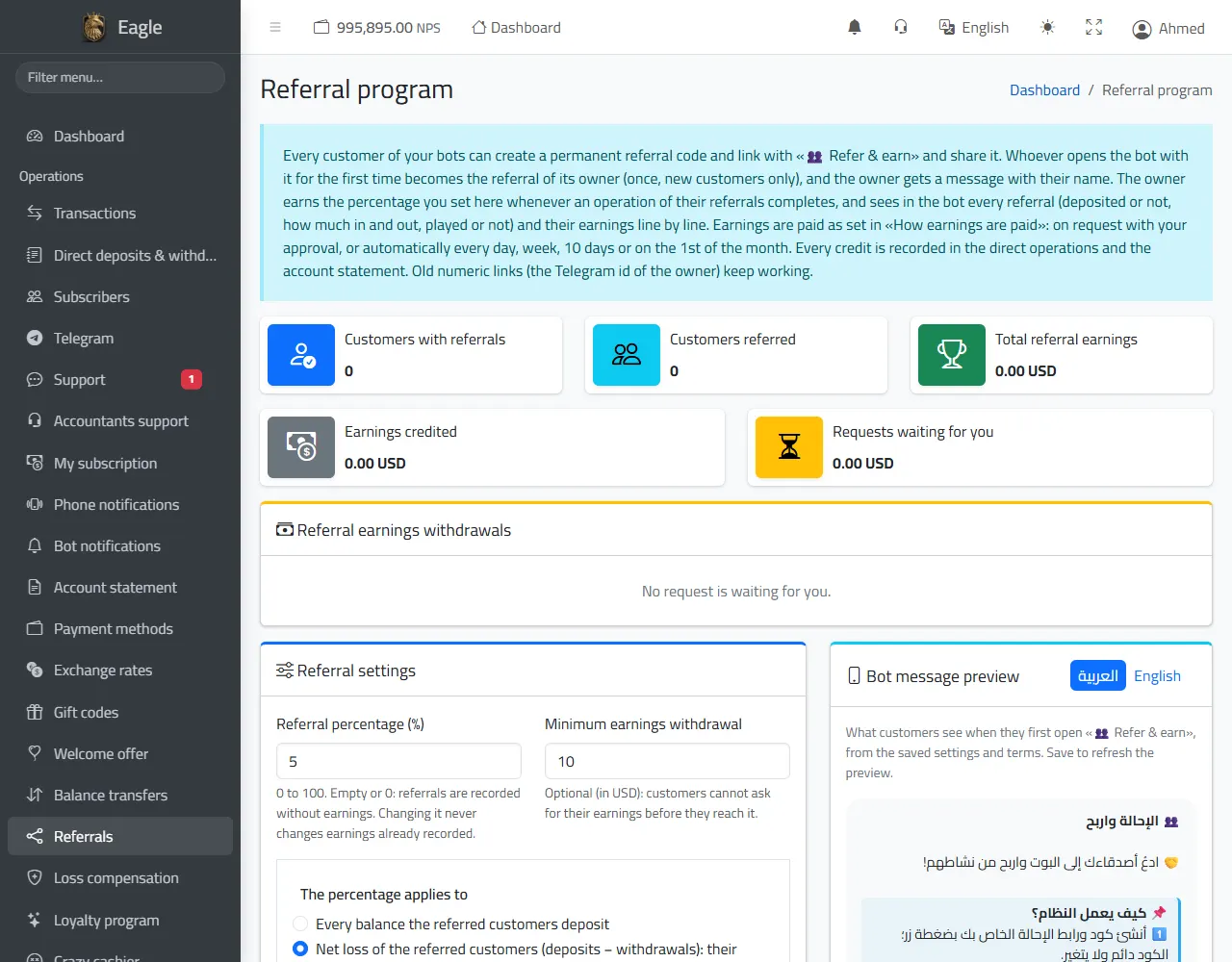
Every customer gets a permanent referral code and link from «👥 Refer & earn». Whoever opens the bot for the first time through the link is recorded for its owner, who earns the rate you set.

  • The rate is taken from every deposit of the referred customers, or from their net loss (deposits − withdrawals).
  • Payouts: on request with your approval, or automatically daily, weekly, every 10 days or on the first of the month, with a minimum.
  • Your own referral terms show to customers in the bot, with a preview of the message in Arabic and English.
  • Statistics, the list of customers with referrals, and payout requests.
  • «Stop the referral program»: the button leaves the bots and the portal and nothing is earned until you start it again; what was recorded before stays.
Referral program: statistics, settings, terms and a preview of the bot's message.

Loss compensation

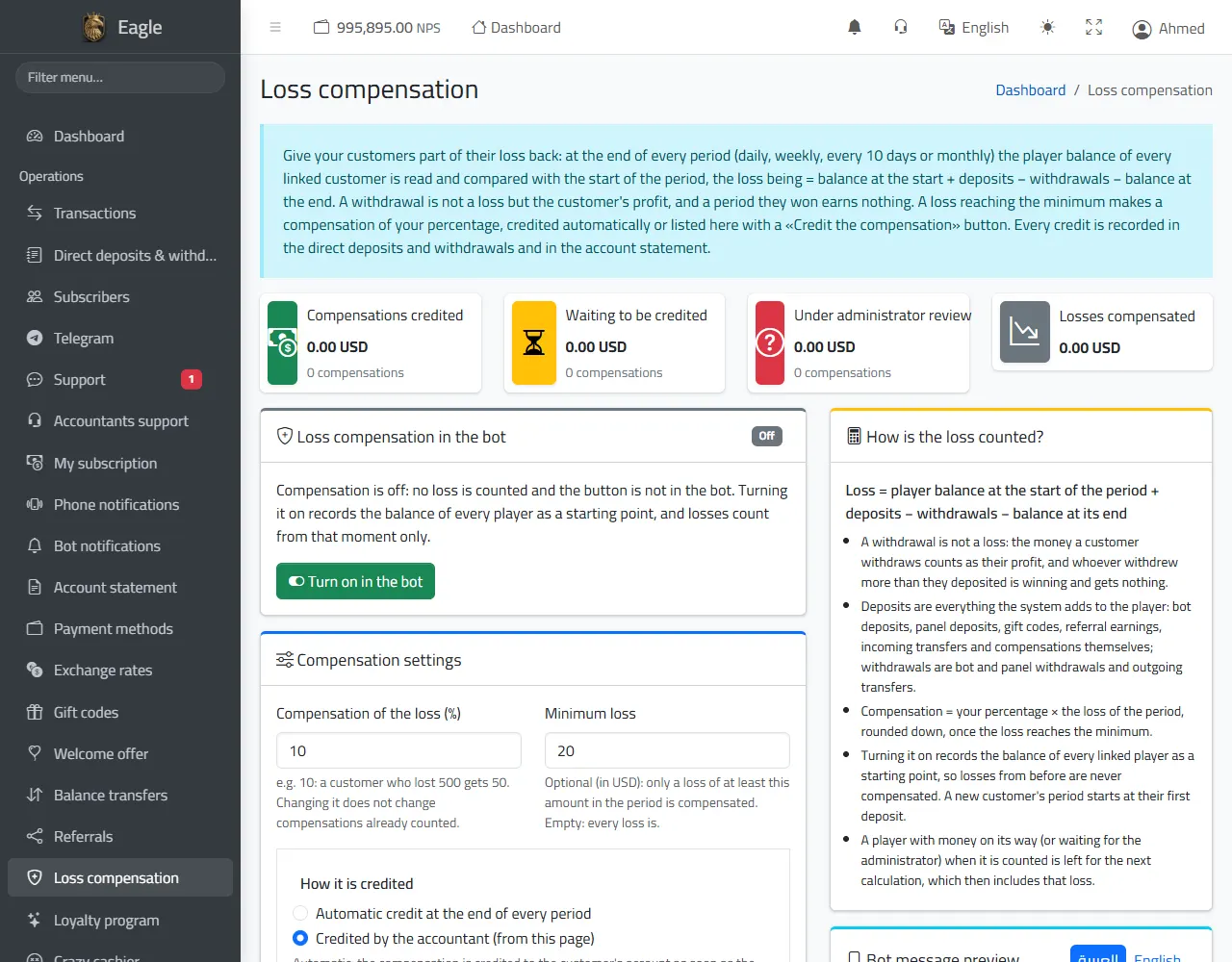
Give your customers back a share of their losses each period: daily, weekly, every 10 days or monthly.

  • Loss = opening balance + deposits − withdrawals − closing balance; a withdrawal is not a loss.
  • You set the compensation rate and a minimum loss.
  • Automatic credit at the end of each period, or manual from this page with a button per compensation.
  • The bot tells the customer of every compensation credited to them, with the loss of the period and the rate.
Loss compensation: settings, how it is calculated and a preview of the bot's message.

Loyalty program and wheel of fortune

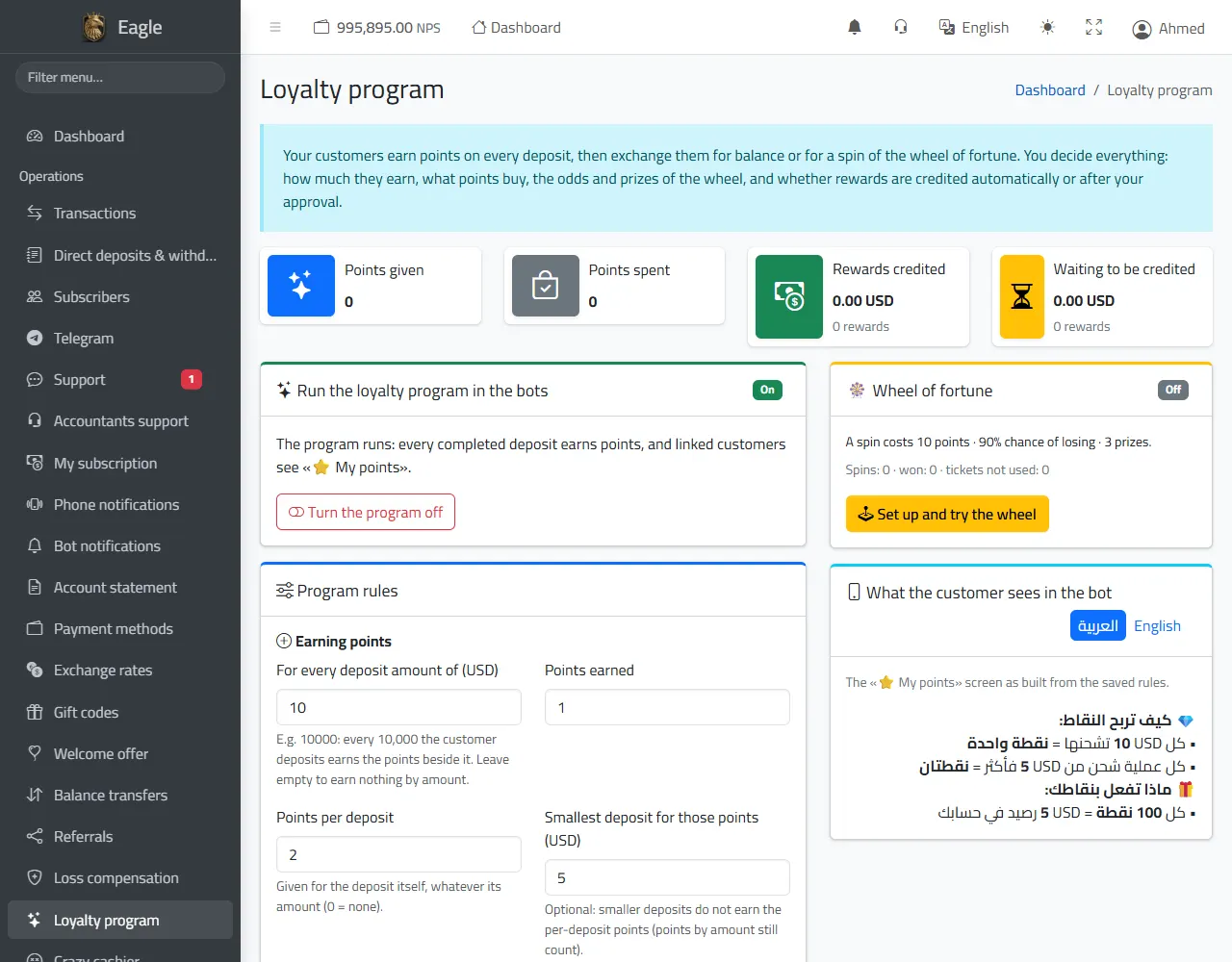
Your customers earn points on every deposit, then redeem them for balance or a spin of the wheel of fortune.

  • Earning rules: points per deposit amount and points per deposit, with an optional minimum; packages may give extra points and spins.
  • Redemption: a number of points worth a balance you set.
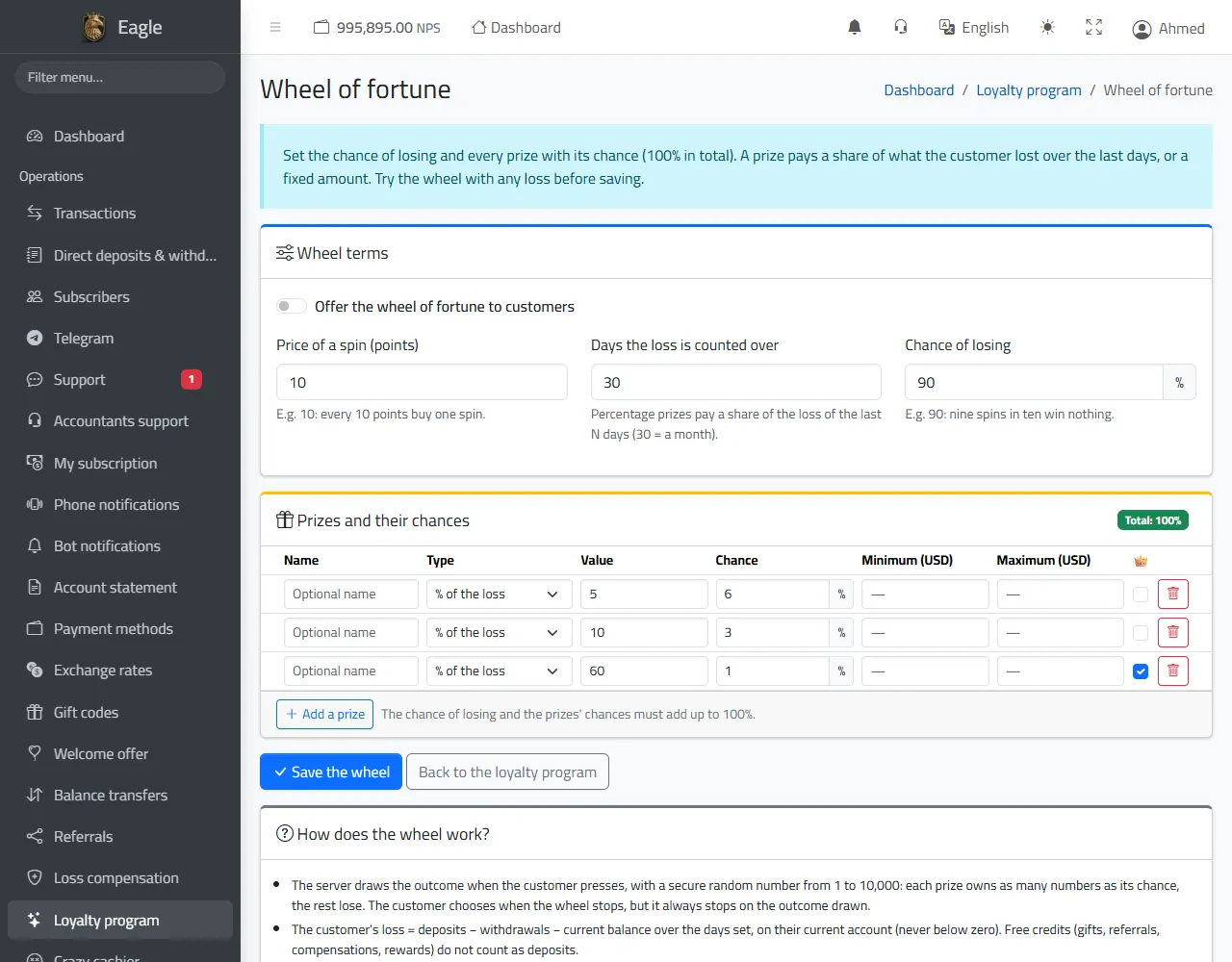
  • The wheel: a spin''s price in points, the chance of losing, and prizes (a share of the customer''s loss or a fixed amount) whose chances add up to 100%, with a test run before saving.
  • The server picks the result with a secure random number, and rewards are credited automatically or after your approval.
Loyalty program: earning and redemption rules, and the wheel of fortune.
Setting up the wheel of fortune: prizes and their chances.

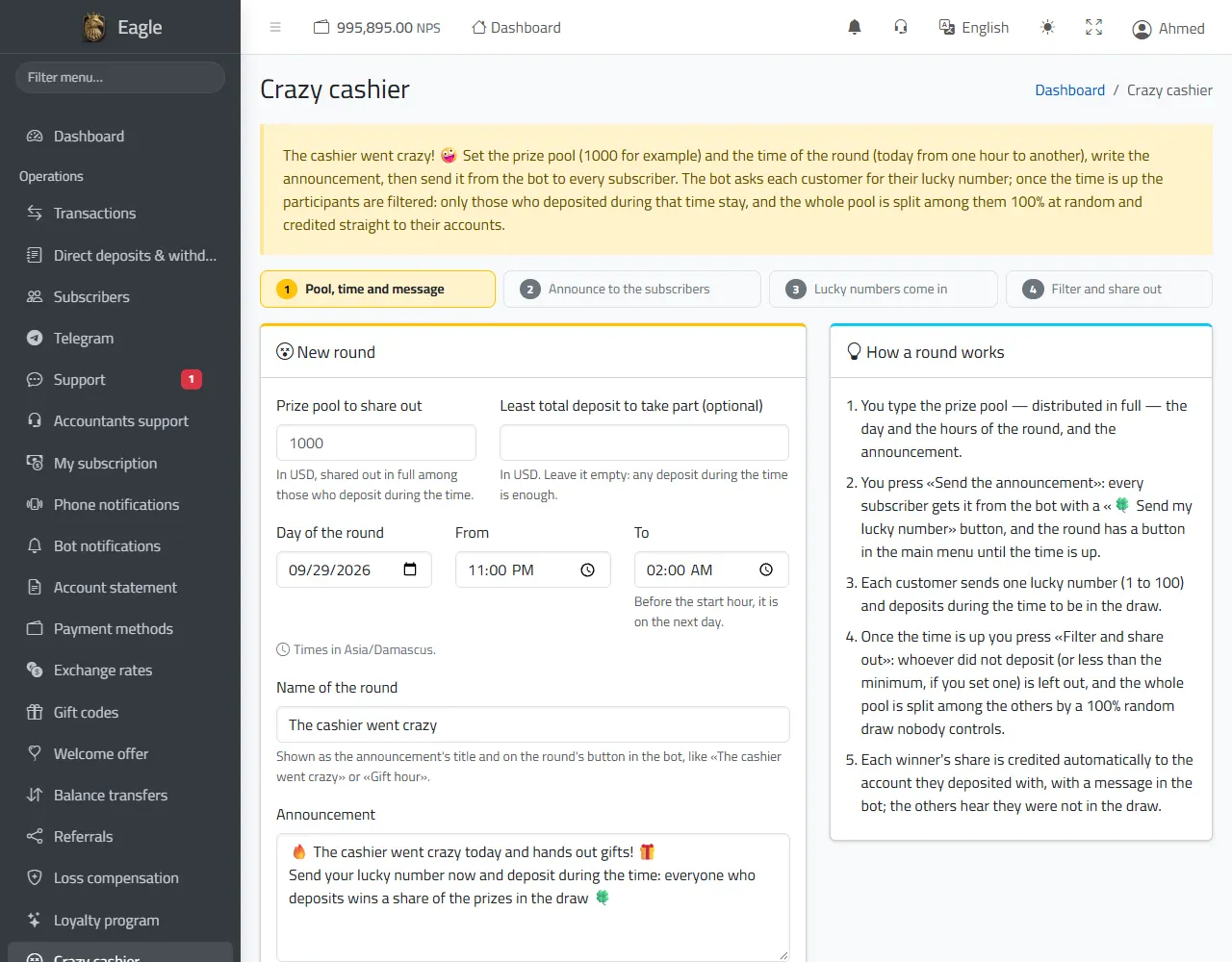
«Crazy cashier»: a prize round

Set an amount to share out in full, the round's time and the announcement; the announcement goes from the bot to all your subscribers, and each customer sends a lucky number and deposits during the round.

  • The round is saved as a draft with a preview of the announcement, which you then send in one tap.
  • When the time is up, «Filter and share the prizes»: only those who deposited during the round (and reached the minimum, if you set one) stay.
  • The amount is split among them by a 100% random draw, each winner''s share is credited automatically with a notification, and the result goes to every subscriber (you can send it again).
  • A log of every round and its results.
A «Crazy cashier» round before it is sent: amount, time and the announcement's preview.

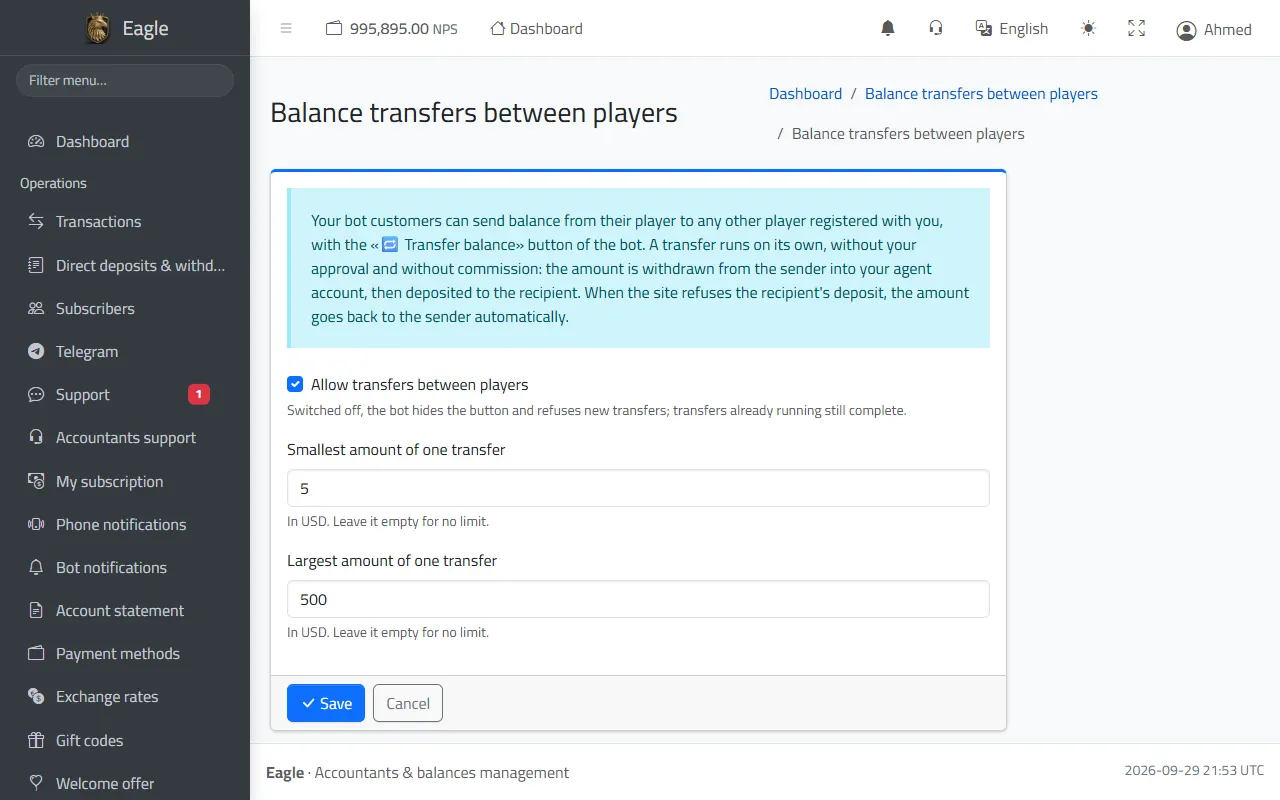
Balance transfers between players

Your customers can transfer balance to any other player registered with you from «🔁 Transfer balance» in the bot, automatically, free or with a fee percentage you set.

  • A minimum and maximum per transfer, a fee percentage on each transfer that stays in your account, or switch the feature off.
  • The amount is withdrawn from the sender, then deposited to the recipient; if the deposit is refused it goes back to the sender automatically.
  • A full log of every transfer and its status.
Balance transfer settings between players.

5. The bot and your customers

What your customer sees in the bot

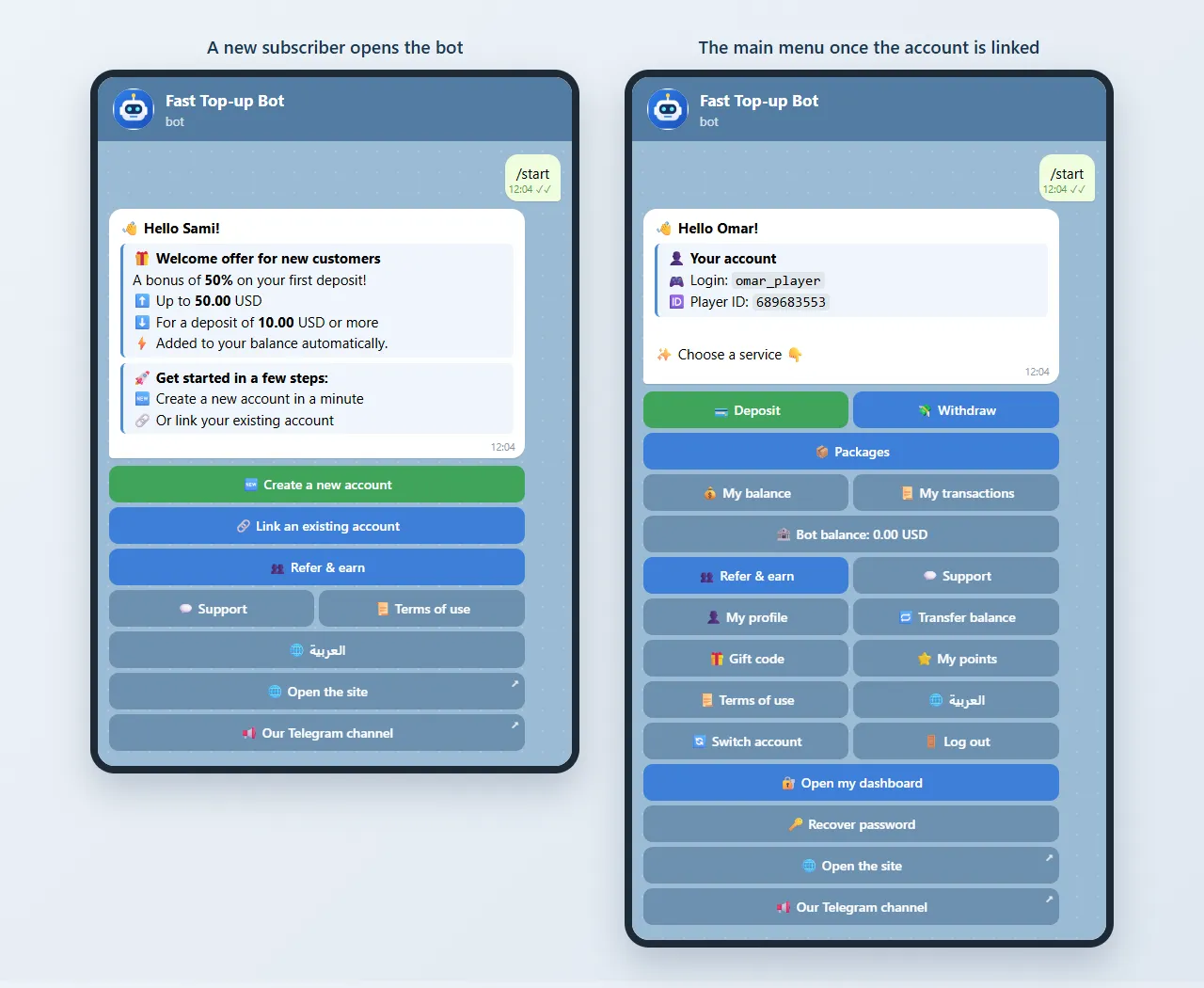
A new customer sees a welcome message (with the welcome offer when it is on) and the «🆕 Create a new account» and «🔗 Link an existing account» buttons. Once their player account is linked, the main menu shows with their account card, and every service is a few short numbered steps:

  • 💳 Deposit and 💸 Withdraw with the payment methods you enabled, their limits, offers and instructions, and a copy button for the account number.
  • 📦 Packages and 🏦 Bot balance, when you switch them on.
  • 💰 My balance and 📜 My transactions: a statement of everything that moved their balance, page by page.
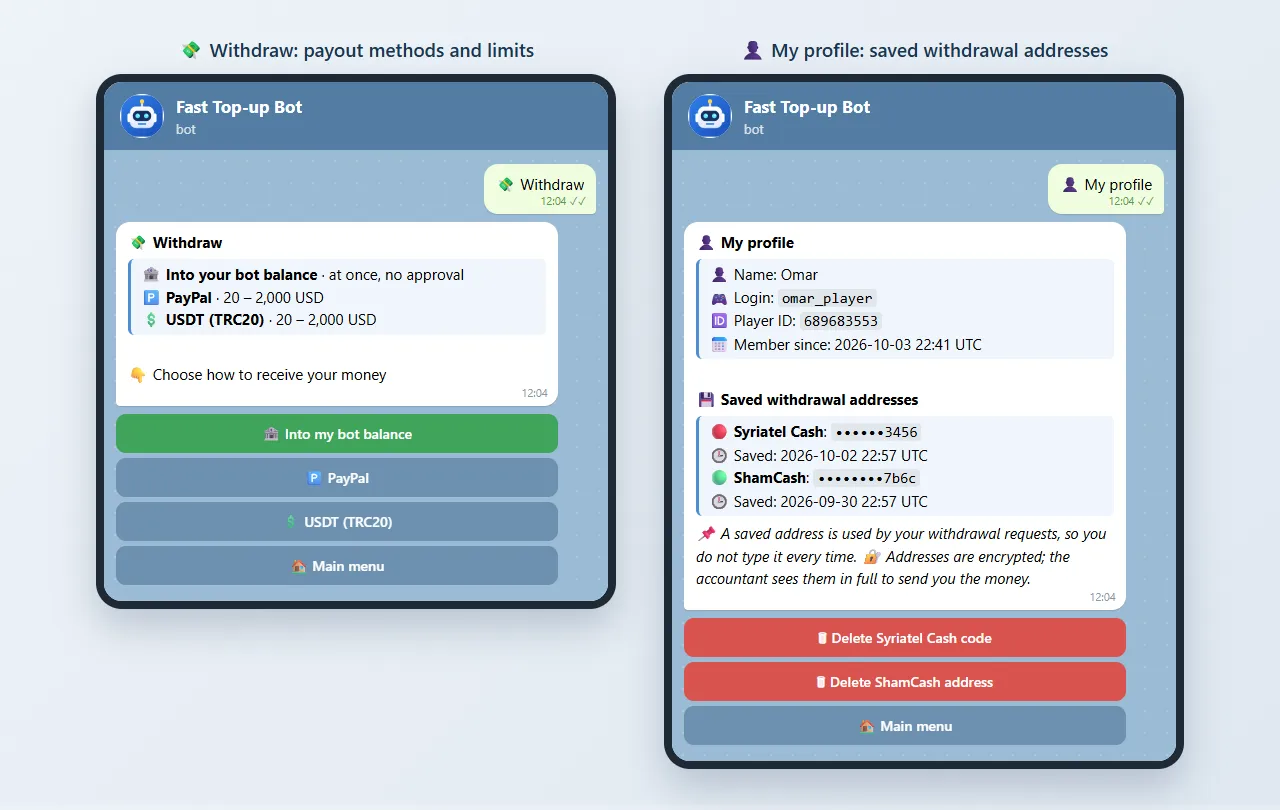
  • 👤 My profile: their details and saved withdrawal addresses, plus 🎁 Gift code, 👥 Refer & earn, 🛡️ Loss compensation, ⭐ My points, 🔁 Transfer balance — as you enable them.
  • 💬 Support, 📜 Terms of use, 🌐 العربية (switch language), 🔄 Switch account, 🚪 Log out, 🔑 Recover password, 🔐 Open my dashboard, 🌐 Open the site, and 📢 the promotion channel.
  • Before pressing «Start», the customer sees the bot''s description and bio with the site''s name, written by the administration for all bots.
In the bot: the welcome message of a new subscriber with the welcome offer, and the main menu once the account is linked.
In the bot: «💳 Deposit» with the payment methods and offers, then the deposit steps.
In the bot: «💸 Withdraw» with the payout methods and their limits, and «👤 My profile» with the saved withdrawal addresses.
In the bot: «📦 Packages» and «📜 My transactions».

Bots and the promotion channel

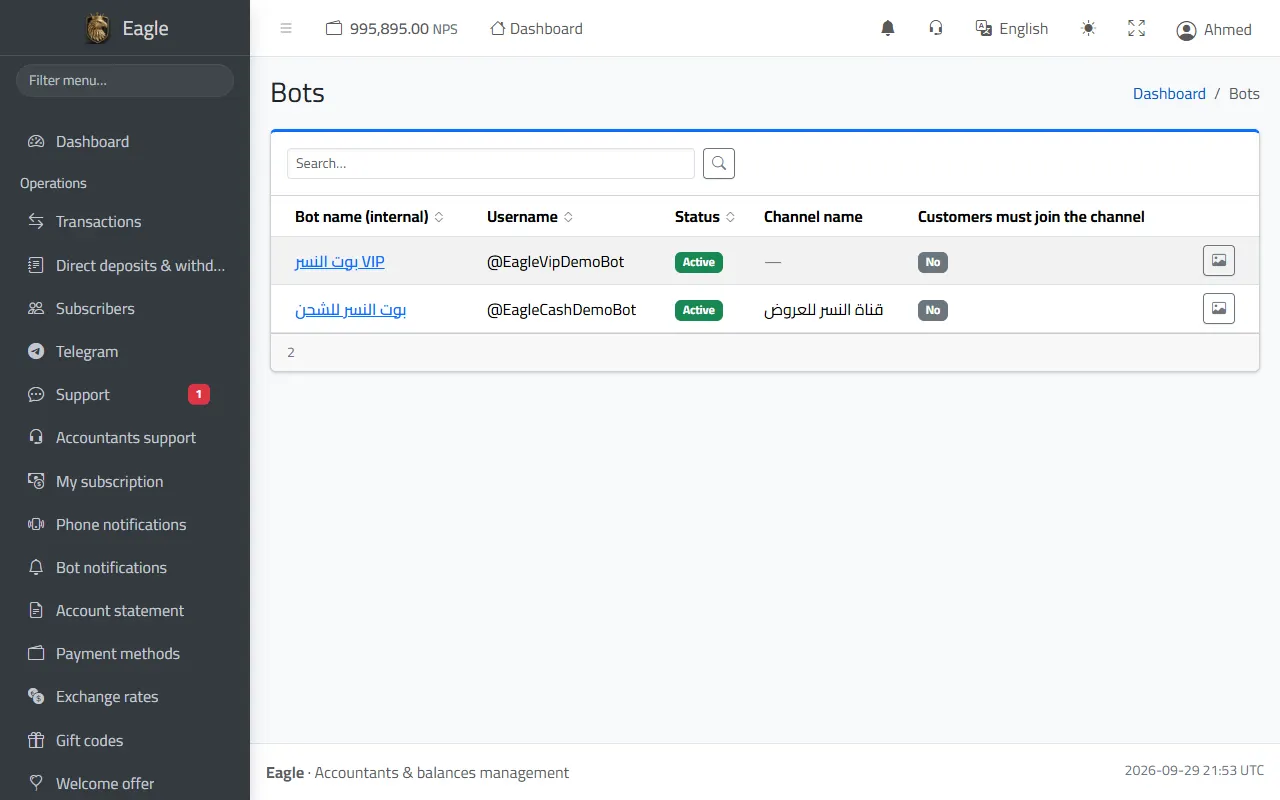
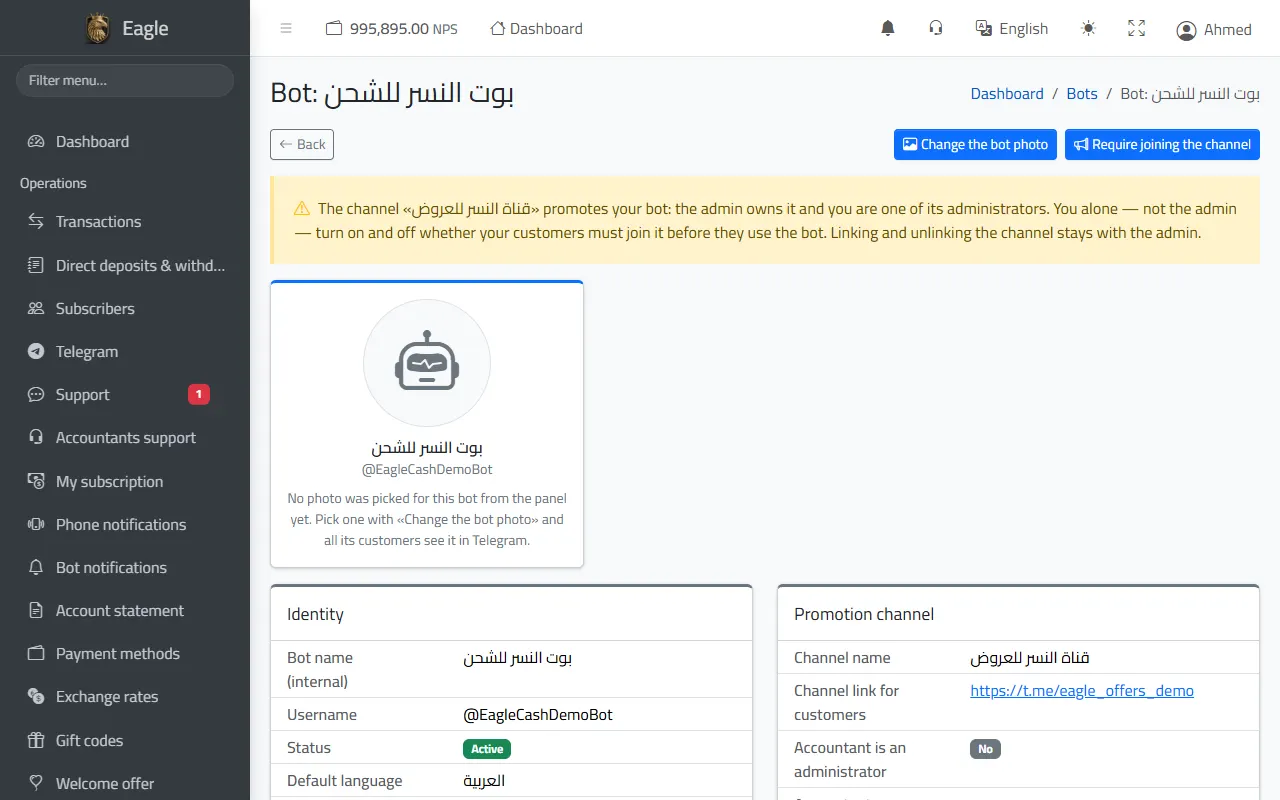
The list of your bots with username, status and channel, and a page per bot with its identity, its link for customers and the payment methods it shows.

  • «Change the bot''s picture»: pick its photo and every customer sees it in Telegram.
  • Promotion channel: owned by the administration with you as an admin; only you can turn on or off forcing your customers to join it before using the bot.
  • The bot''s default language; customers switch between Arabic and English with a button.
  • The bot''s button symbols and its description in Telegram are set by the administration for all bots at once.
The bots list with username, status and channel.
A bot's page: identity, promotion channel and forced subscription.

Bot terms

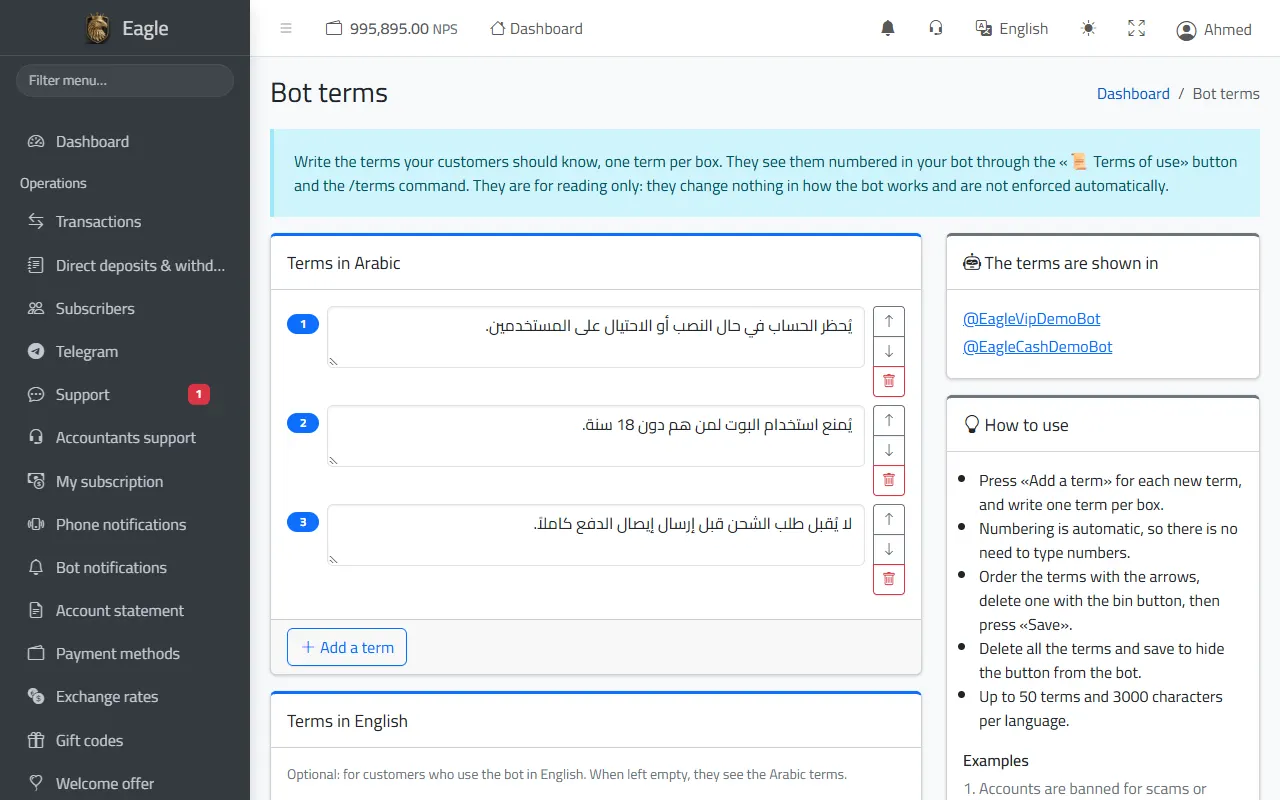
Write the terms of use for your customers, one per field; they show numbered in the bot from «📜 Terms of use» and the /terms command.

  • In Arabic and English, up to 50 terms, reordered with the arrows and deleted.
  • Deleting every term hides the button from the bot.
The bot's terms as customers see them.

Subscriber portal

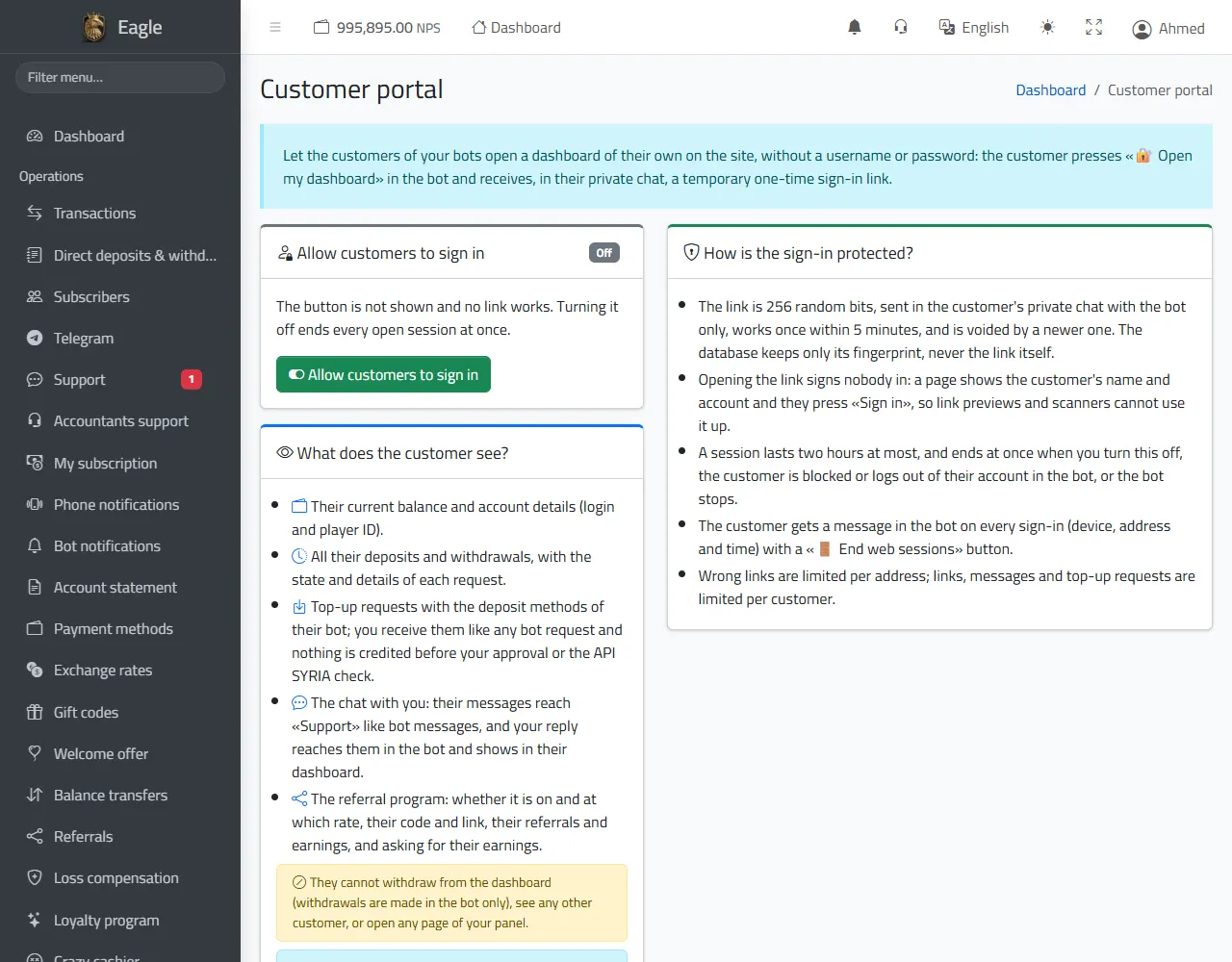
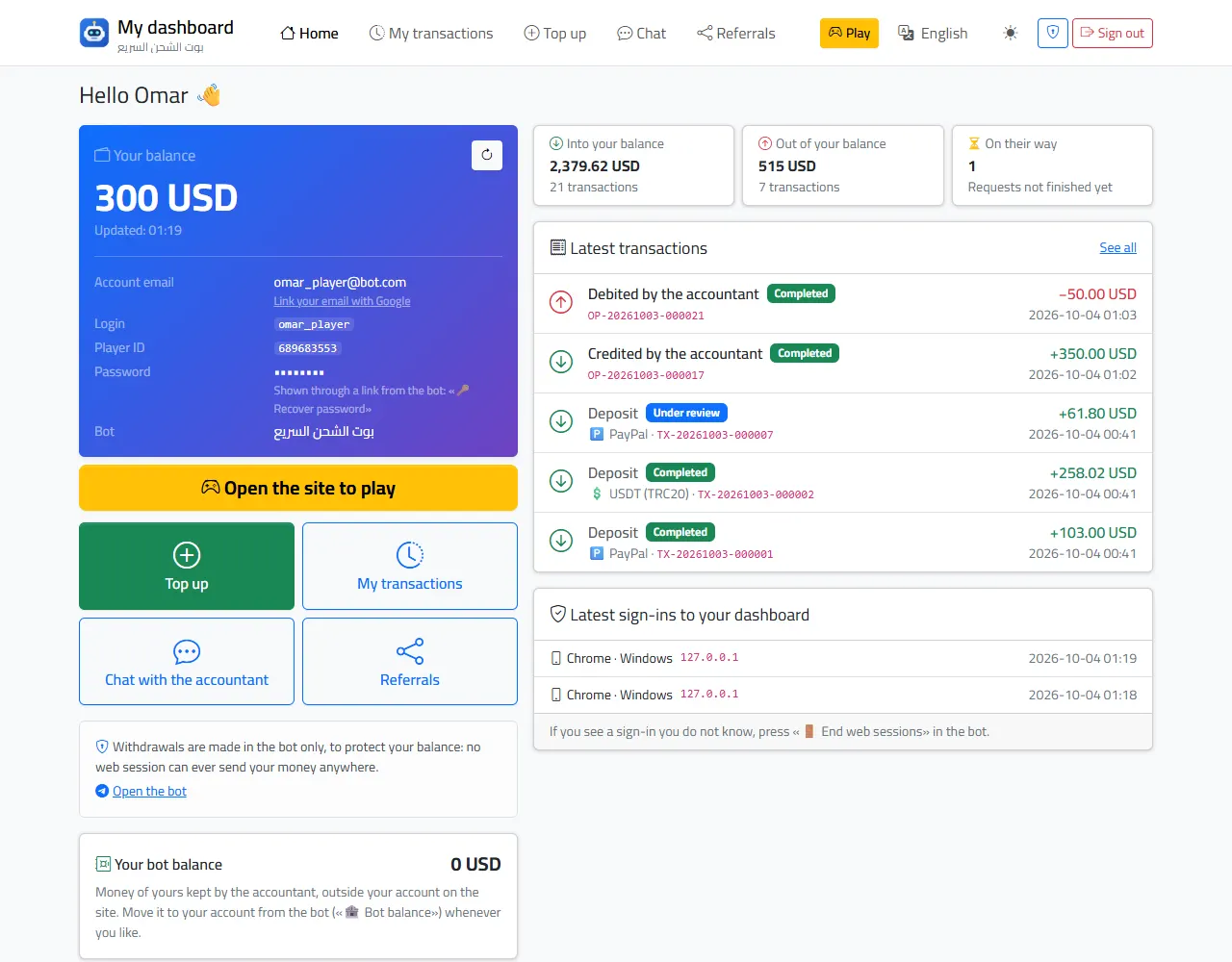
A private dashboard for each subscriber on the site, without a password: they press «🔐 Open my dashboard» in the bot and get a one-time sign-in link.

  • They see their balance and every deposit and withdrawal, ask for a top-up or a package, message you, and follow their referrals, earnings and bot balance.
  • They cannot withdraw from the portal, see any other subscriber, or reach your panel.
  • The link works once within 5 minutes, a session lasts two hours at most, every sign-in notifies the subscriber, and they can link Google or a passkey to sign in later.
  • «🔑 Recover password» is available to all your subscribers even with the portal off.
Subscriber portal: switching it on, what the subscriber sees and how sign-in is protected.
The subscriber portal as the customer sees it: balance, account, latest operations, and the top-up and chat buttons.

6. The Agent platform (cashier)

Agent account (API)

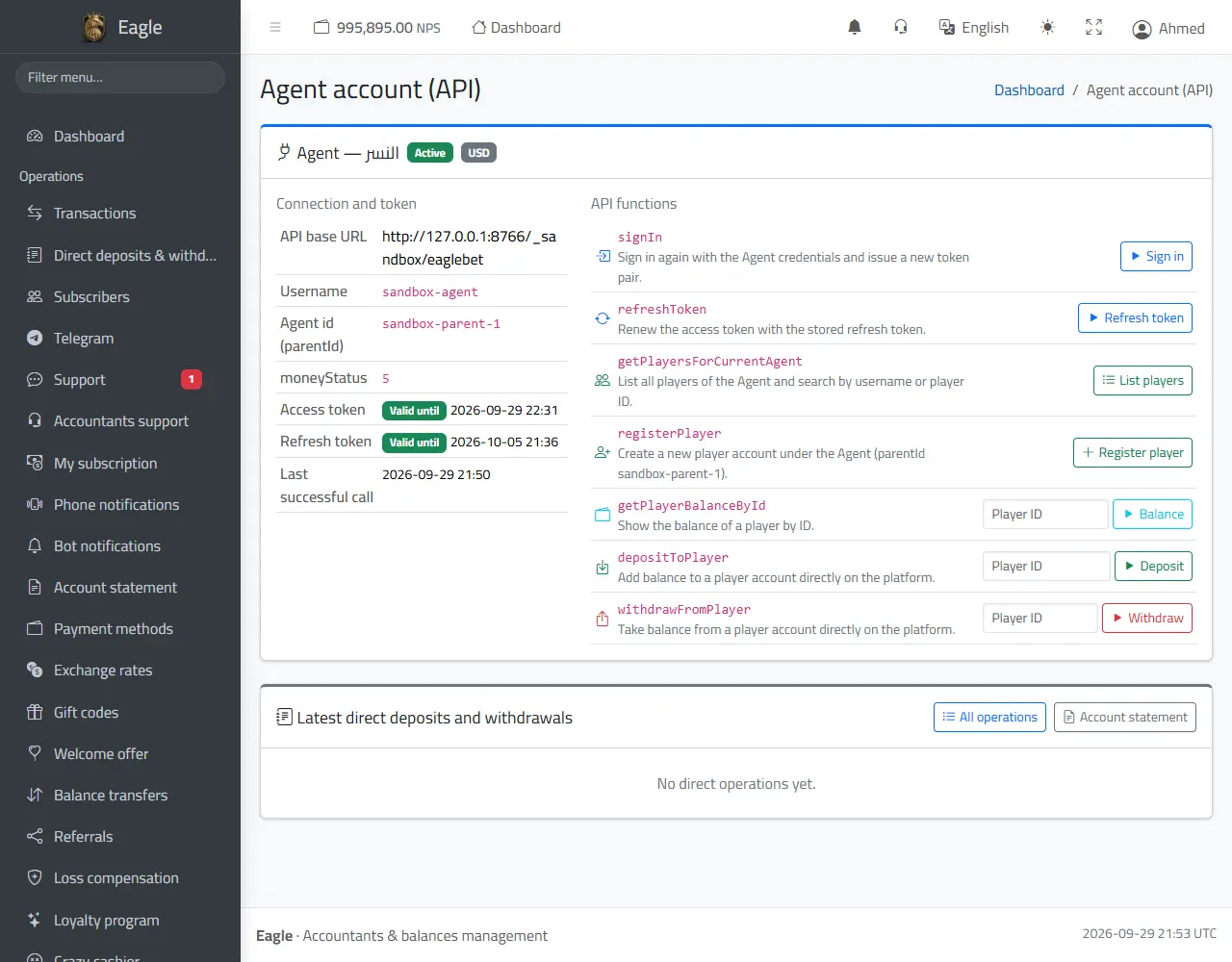
How your cashier is connected to the system: the API link, username, Agent ID, token validity and the last successful connection.

  • Buttons to try the API functions: sign in, refresh the token, list players, register a player, balance, deposit and withdraw.
  • The latest direct operations, and a link to the statement.
The platform allows only one token per Agent, so any sign-in with the cashier's details from another program cuts the system's connection until it signs in again.
Agent account: connection, tokens and API functions.

Players and the player page

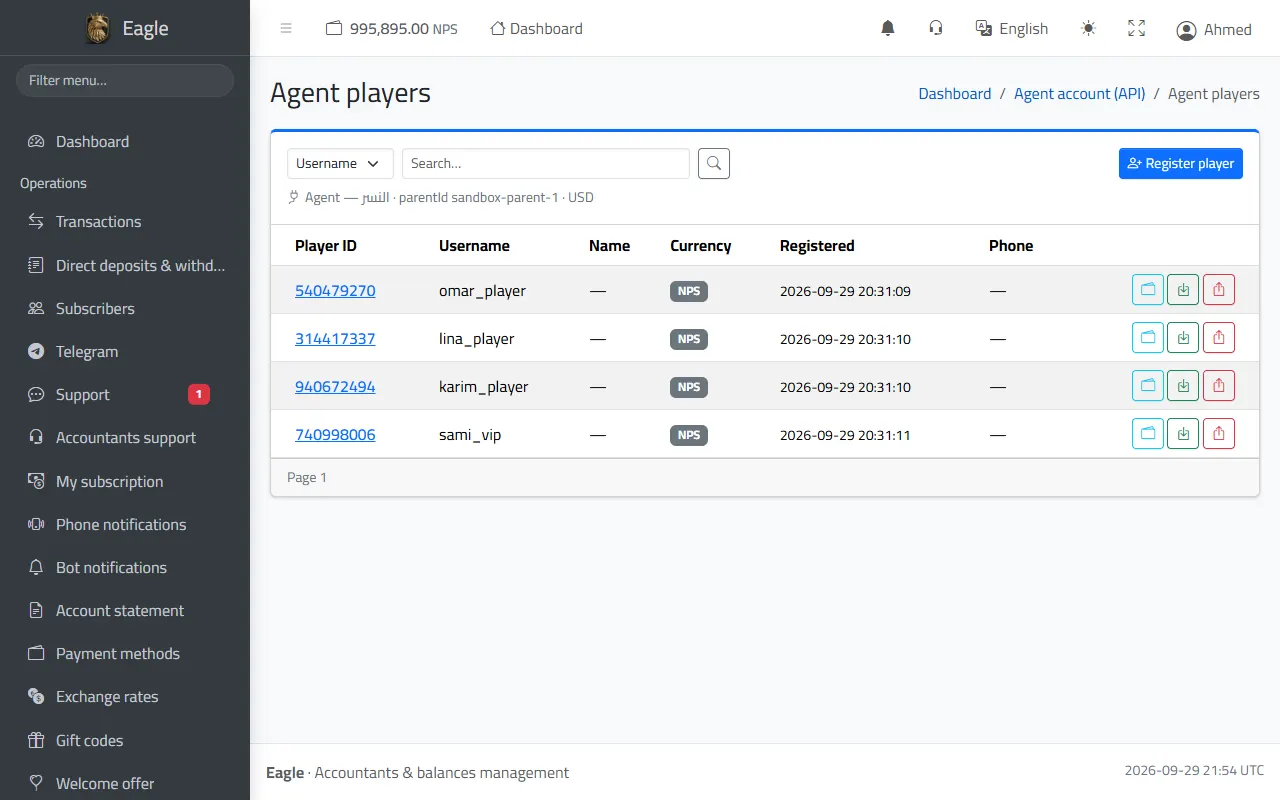
All the Agent's players straight from the platform, searchable by username or player ID, with balance, deposit and withdraw buttons.

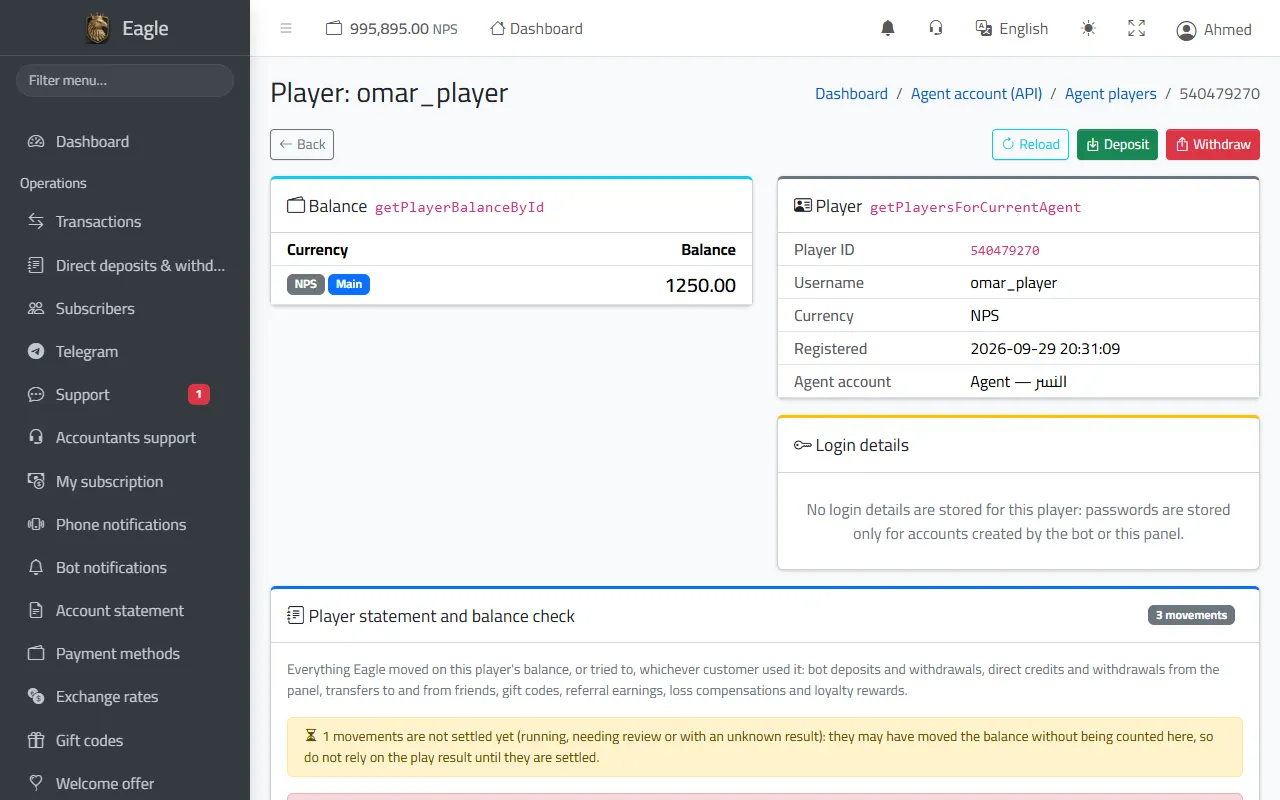
  • The player page: live balance, details, and «Show the password» for accounts created by the bot or the panel (each view is written to the audit log).
  • Direct deposits and withdrawals, with your password or fingerprint every time.
  • The player''s statement and balance check: everything the system moved on their balance, the expected balance, and their playing result (win or loss).
The Agent's players straight from the platform.
A player's page: live balance, details and the player's statement.

Register a new player

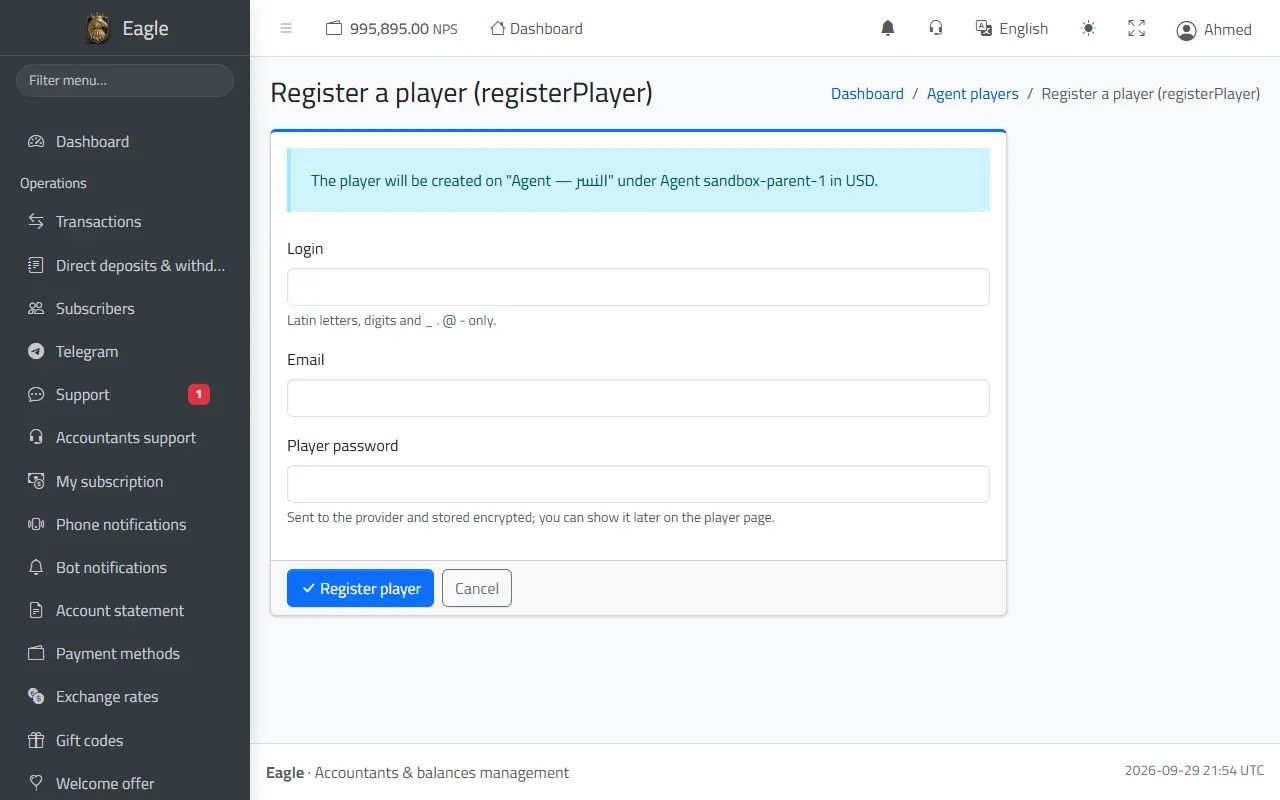
Create a player account on the platform straight from the panel: login, email and password.

  • The player is created under your Agent account and in your currency.
  • The password is stored encrypted, and shown later on the player''s page.
Registering a new player on the platform from the panel.

7. Subscription, account and security

My subscription

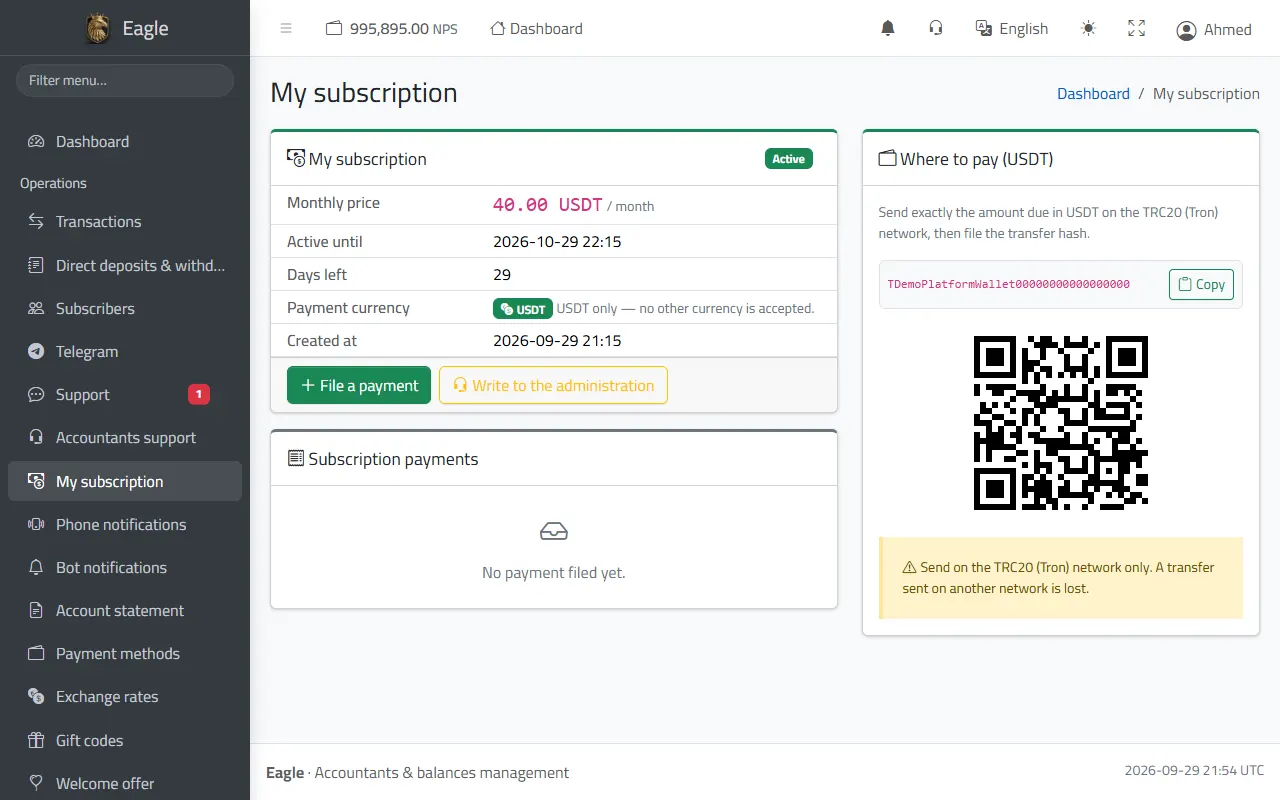
Your monthly subscription: price, valid until, days left, and payment history.

  • Payment in USDT only, to the platform wallet shown on the page, then «Declare a payment» with the transfer hash and the number of months.
  • The administration checks the transfer on the network and your subscription is extended at once.
  • Reminders reach you before it ends; after the grace period the bots stop until payment, while the panel stays open for paying and messaging the administration.
My subscription: status, price, valid until, and the payment methods the administration publishes.

Account settings and ways to sign in

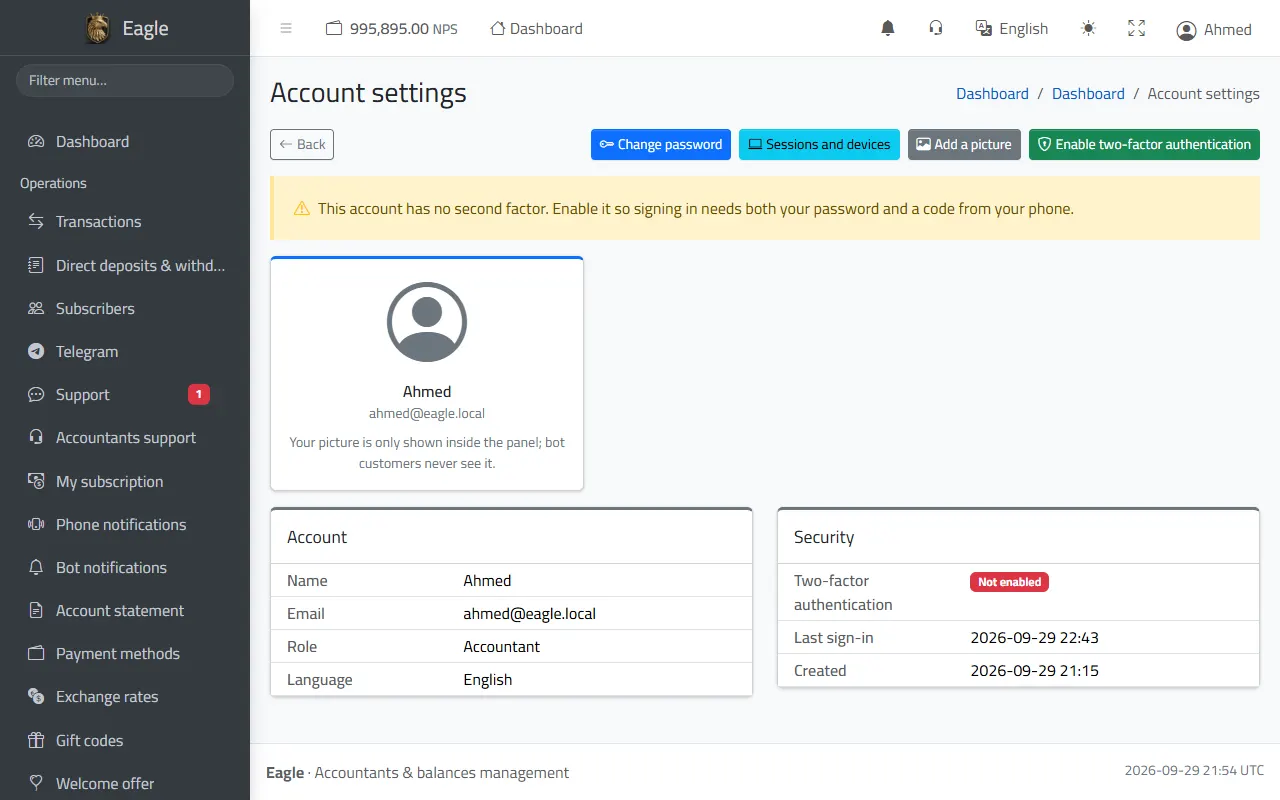
Your account details, password change, profile picture, panel language and extra ways to sign in.

  • Two-step verification: password + a code from the authenticator app on your phone; the administration requires it on accountant accounts to protect your money, and repeated wrong codes lock the account for a while.
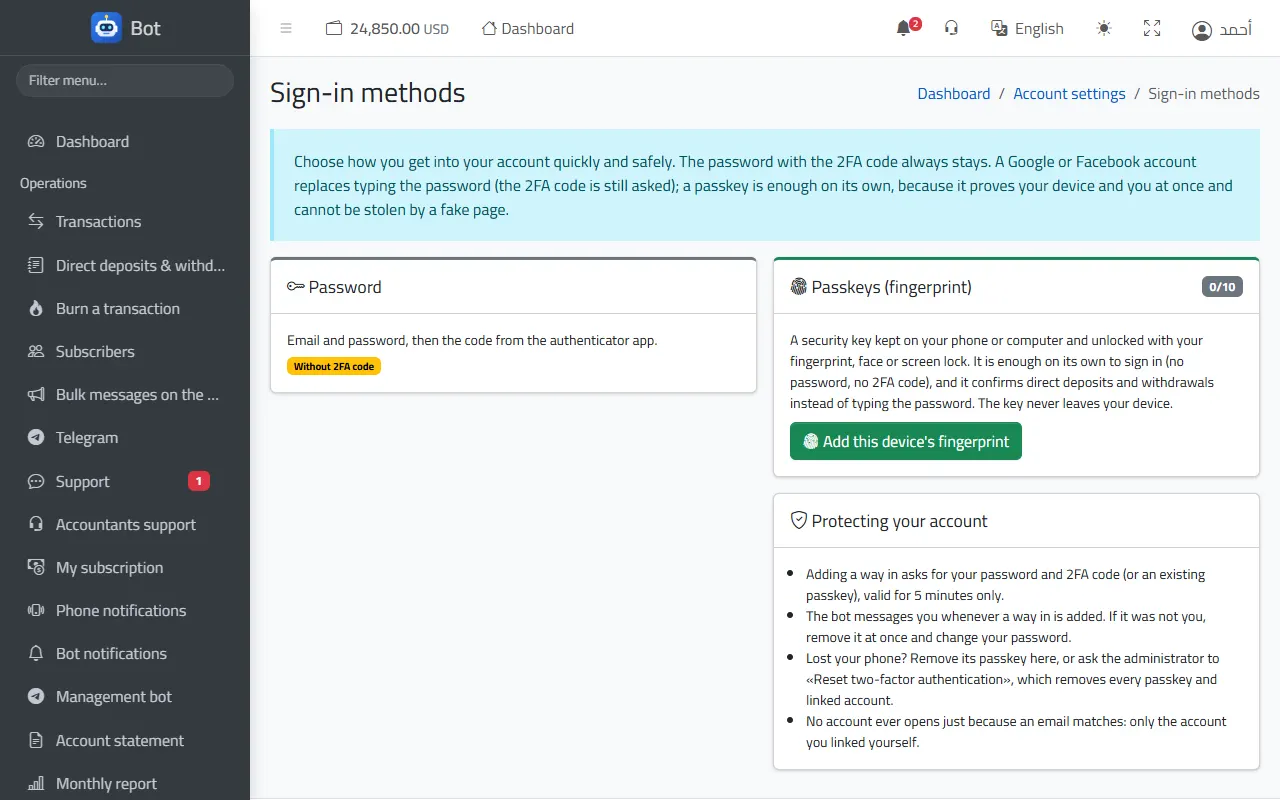
  • «Ways to sign in»: link Google or Facebook, or add a passkey to sign in with a touch and confirm direct deposits and withdrawals with your fingerprint instead of your password.
  • «Remember me on this device» keeps you signed in for 7 days on your device.
  • Android app: offered on the sign-in page when the administration provides it.
Account settings: password, picture and two-step verification.
Ways to sign in: Google, Facebook and passkeys.

Sessions and devices

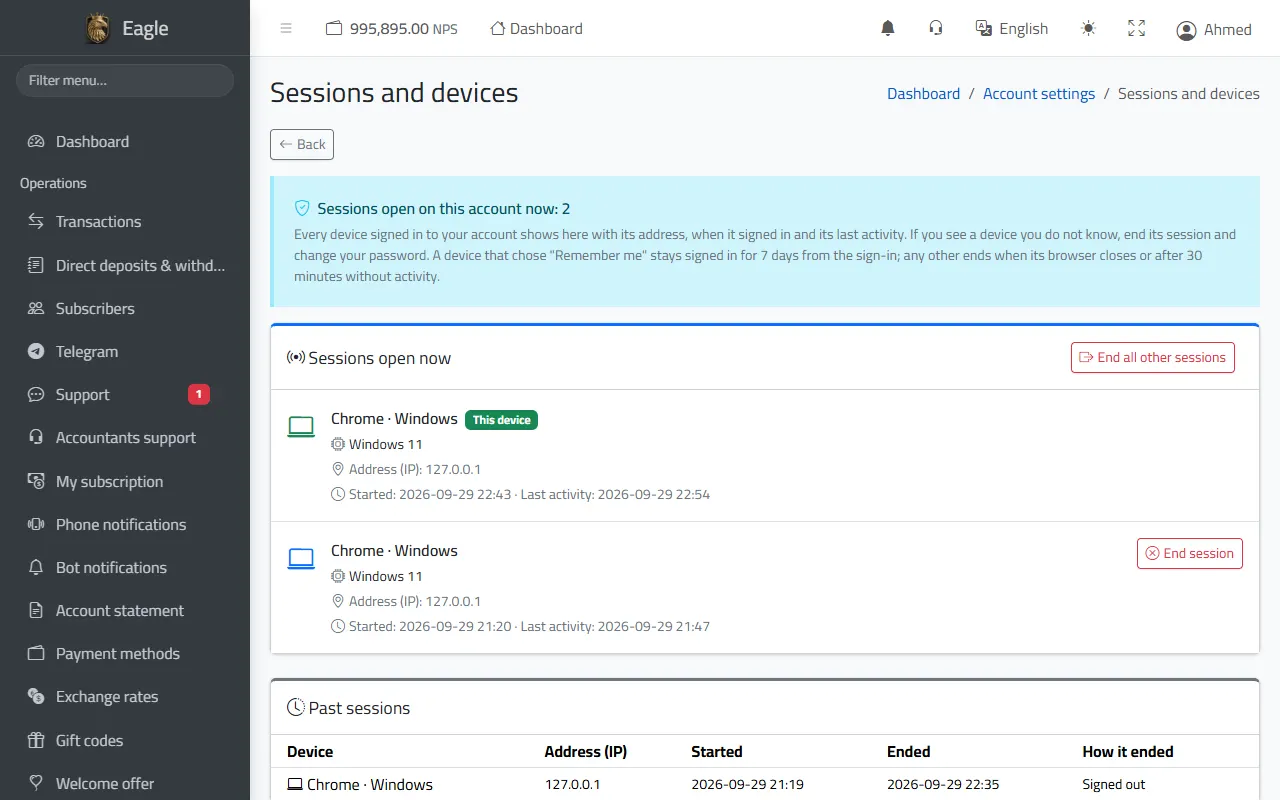
Every device signed in to your account: type, address, sign-in time and last activity.

  • End any session you do not recognise, or all the others in one click, then change your password.
  • The sign-in and security log: every sign-in and failed attempt with address and device.
Sessions, devices and the sign-in log.

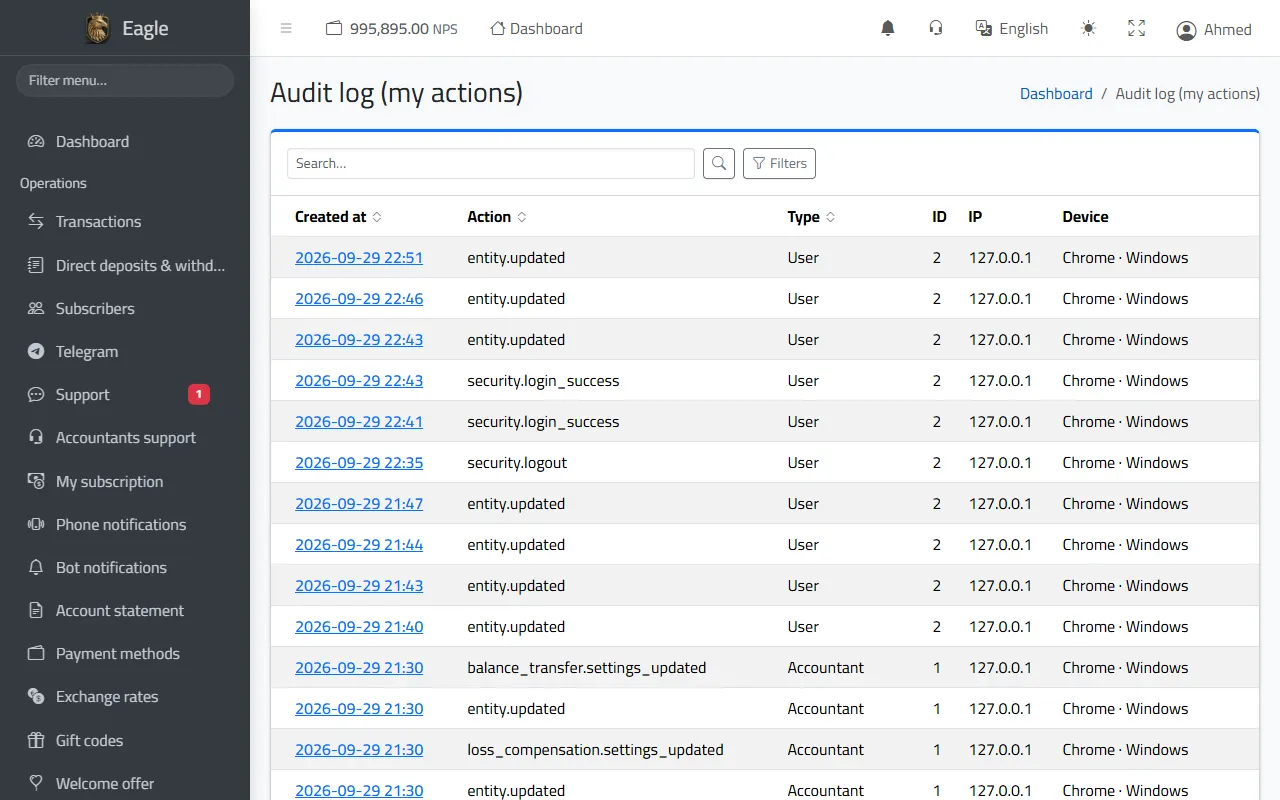
Audit log

Everything you did in the panel is recorded with date, address and device: sign-ins, approvals, direct deposits, settings changes and password views.

  • The log is read-only: never edited or deleted.
  • Filters by action and date.
The audit log of your actions.
The pictures use demo data: made-up names, numbers and accounts, and the site in them is called "Bot" with a robot icon. A few pages may look slightly different after updates.

Contact us

Message us to get your bot within minutes.